Software
Software Basics

Contents
Software is the name for all the programs and data that tell a computer what to do. The hardware on its own can only switch and store; without software it has nothing to follow. Software splits into two broad groups: system software, which runs the computer itself, and application software, which does a job for you such as editing a photo or playing a game.
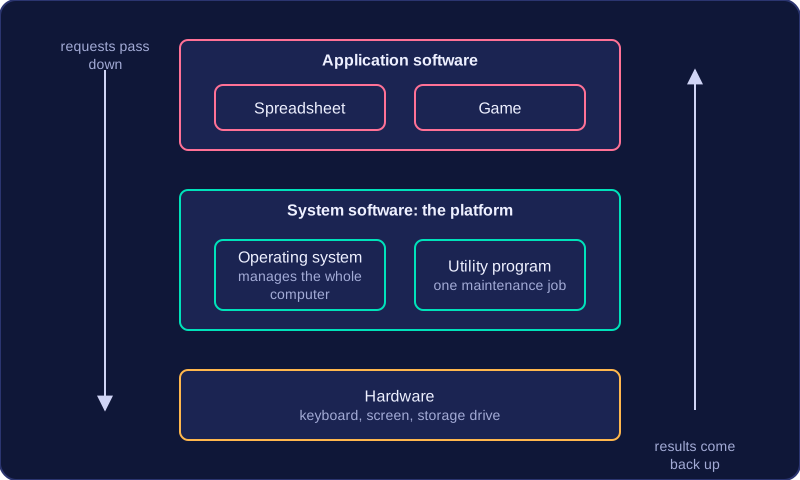
System software provides a platform
System software is the ground everything else stands on. When you open a spreadsheet, it does not talk to the keyboard, the screen and the storage drive directly. It asks the system software, which passes the requests on to the hardware and hands back the results. That is what makes system software a platform: it provides the services other software needs in order to run at all. Application software depends on it, because a game on a computer with no system software could not read its own files or draw anything on the screen.
Two types of system software
System software is not one single thing. It covers two kinds of program:
- An operating system is the main system software. It manages the hardware, the files, the running programs and the users, and it loads and runs the applications you choose.
- A utility program is a smaller system program that carries out one maintenance job on the computer, such as making a second copy of your files in case the originals are lost.
Both count as system software because both work on the computer system itself rather than on a task such as writing an essay. A utility does not manage the hardware the way an operating system does: it performs one focused job that keeps the system working well.
| Question | Operating system | Utility program |
|---|---|---|
| What is it for? | Managing the whole computer system | Carrying out one maintenance task |
| Could the computer run without it? | No, it loads and controls everything else | Yes, the computer still works |
| Example | The software that starts the computer up and lets you log in | The software that repairs a damaged photo file |
System software is the software that runs the computer itself, and its most important type is the operating system. The operating system (OS) is the system software that manages the computer's hardware, its users and the resources that other software needs. It is loaded when you switch the computer on and keeps running the whole time the computer is on. Hardware on its own cannot do anything useful without software to direct it.
The purpose of an operating system
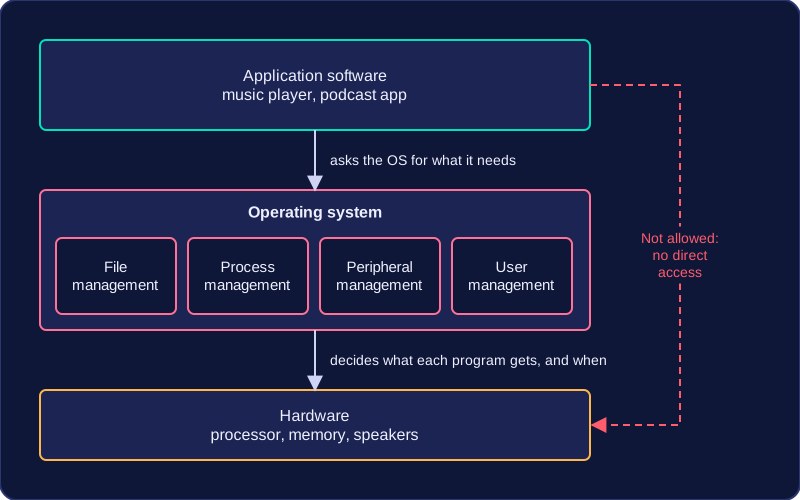
The purpose of the OS is to manage the hardware and resources of the computer and to provide an environment in which application software can run. Application software is the software you choose to use, such as a music player or a podcast app. It is not allowed to grab memory, processor time or the speakers directly, because two programs doing that at once would clash. Instead it asks the OS, which decides what each program gets and when.
Core functions
To do this job the OS provides core functions that allow the computer system to operate at all. Each one manages a different part of the system:
- File management – controls how files and folders are stored, named and found.
- Process management – shares the processor between the programs that are running.
- Peripheral management – controls input and output devices such as keyboards and screens.
- User management – creates accounts and sets what each user is allowed to access.
Think of a school site manager: they teach no lessons, but they unlock the rooms, run the heating and control who gets into which building, so that teachers can teach. The OS works the same way: it does not do the task you want done, it makes sure everything needed is ready so the software you chose can get on with it.
The OS is system software, not application software, and it is not the same as utility software, which only adds extra maintenance jobs. A computer can start up and be used with no utilities installed, but it cannot work without an OS.
File management is the operating system function that controls how files and folders are stored, named, accessed, moved and deleted. Without it, data would sit on a drive with nothing to say which chunk belonged to which file, and no program could find what it needed.
How the operating system keeps files organised
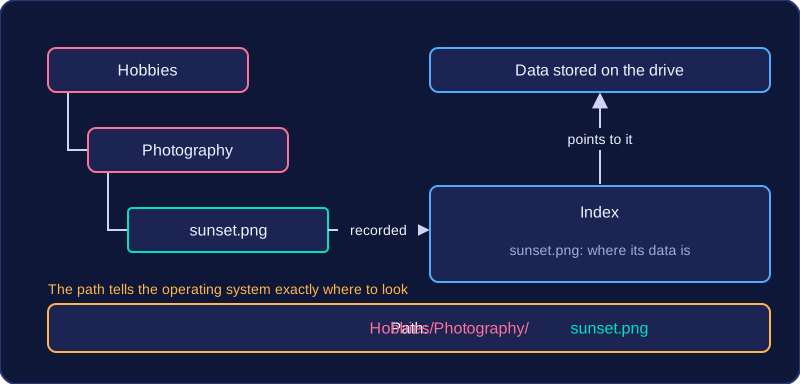
A drive is set up with a file system, which is the structure the operating system uses to organise data on it. It works like a set of nested folders: a top-level folder contains folders, which contain more folders and files. Each file has a path, such as Hobbies/Photography/sunset.png, and that path tells the operating system exactly where to look.
| Job | What the operating system does |
|---|---|
| Storing | Finds free space on the drive, writes the data there and records the location in an index so the file can be found again. |
| Naming | Checks the name follows the rules and is not already used in that folder, then uses the extension (.docx, .png) to link the file to the program that opens it. |
| Accessing | Looks up the index when a file is requested, follows the path, then passes the data to the program. |
| Moving and deleting | Updates the index so a file points at a new folder, or marks its space as free, without rewriting the whole drive. |
Saving a file called trip-plan.docx shows these jobs working together. The operating system checks the name is allowed, finds enough free space, writes the data there, and adds an index entry saying where it went. When you open it later, the operating system reads the index, follows the path and hands the data to the word processor, which never needs to know which part of the disk the file sits on.
Deleting a file usually just removes its index entry and marks the space as free, so the data may stay on the disk until something else overwrites it, which is why a deleted file can sometimes be recovered. File management is only one of the operating system's management jobs, but it decides where data is kept and how it is found again.
Process management is the operating system function that controls the programs that are running. A running program is called a process. The operating system starts processes when they are needed and stops them when they finish, freeing the processor for other work.
Sharing the processor
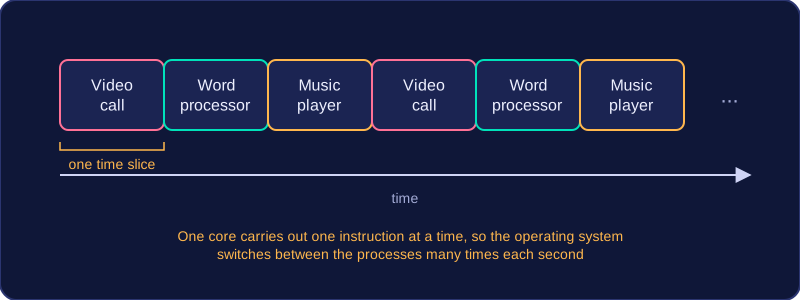
A computer usually has more processes wanting to run than it has processor cores. Process management allocates processor time so that each process gets a turn. The operating system switches between processes very quickly — many times each second — giving each one a short time slice. This makes it look as though several programs are running at once, even when one core can only carry out one instruction at a time.
For example, a student might have a video call open, a word processor and a music player. The operating system creates a process for each one and schedules them in turn. The video call keeps your voice flowing, the word processor still responds when you type, and the music keeps playing. Without process management, one program could take over the processor and the others would freeze.
Starting and stopping
When you open an app, the operating system loads it and starts a process. When you close the app or it finishes its job, the operating system stops the process and reclaims its resources. It can also stop a process that is no longer responding, so one faulty program does not stop the whole computer from working.
A process is not the same as the program file saved on disk. The file holds the instructions; the process is those instructions being carried out, along with the data and resources it is using while it runs.
Peripheral management is the operating system function that controls the input and output devices attached to a computer.
Peripherals are the devices that send data into the computer or receive data from it, such as a keyboard, mouse, webcam, printer or speaker. Each type of device works in its own way, so the operating system has to coordinate them all. This is not the same as managing files stored on a USB stick; peripheral management is about controlling the devices themselves.
Managing device drivers
A device driver is a small program that tells the operating system exactly how to communicate with one particular device. The operating system manages these drivers: it loads the correct driver when a device is connected, makes sure the right driver is used for each device, and handles any conflicts between devices. Without a suitable driver, the computer cannot use the device properly.
Handling communication
The operating system also handles the communication between each device and the computer. It takes data from an input device and passes it to the right program, and it sends data from a program to an output device. It can hold data temporarily while a device is busy, so the processor can carry on with other work instead of waiting.
For example, when you connect a new printer, the operating system detects it and loads its driver. When you print a document, the operating system sends the data to the printer at a speed the printer can manage, holding the rest of the data safely until the printer is ready. Meanwhile, your computer can keep responding to the keyboard and mouse because the operating system is managing all the peripherals at once.
User management is the operating system function that manages user accounts, login details and access rights (also called permissions). It controls who can use the computer and what each person is allowed to do after they log in. It is not about supervising the people themselves; it is about managing their accounts and what those accounts can access.
Accounts and login details
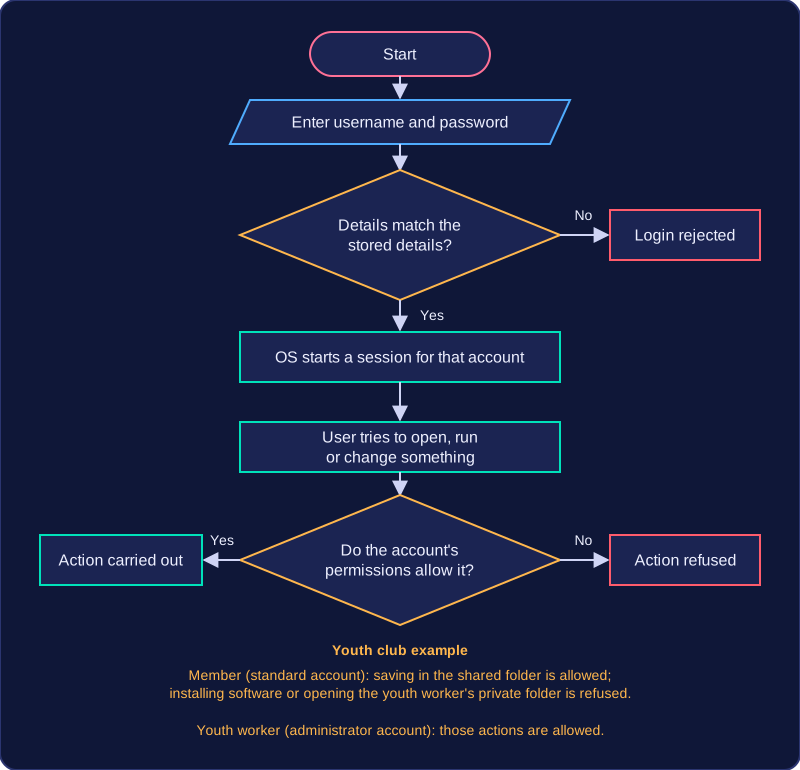
Each person who uses a computer can have their own user account. The operating system stores each account's username and password (passwords are kept encrypted) and checks them when someone logs in. If the details match, the OS starts a session for that account. An administrator can also create new accounts, reset a forgotten password and remove accounts that are no longer needed. This means one computer can be shared safely: each user has their own files and settings, kept apart from everyone else's.
Permissions
Permissions are the rules that say what an account may do. A standard account might be allowed to open and save files in its own folder but not delete another user's files or change important system settings. An administrator account can install software, change settings and manage other accounts. The OS applies these rules every time a user tries to open a file, run a program or change a setting, so it protects data and stops accidental or deliberate damage.
On a shared computer at a youth club, the youth worker has an administrator account and the members have standard accounts. When a member logs in, the OS applies that account's permissions: they can save their project in the club's shared folder but cannot install new software or open the youth worker's private folder. When the youth worker logs in, the administrator permissions allow those actions. The OS decides this from the account that is logged in, not from who is sitting at the keyboard.
Utility software is a type of system software. Its job is to carry out extra maintenance tasks that keep a computer running efficiently. The operating system gets the computer started and manages its hardware and resources; utility software works alongside it, doing the extra jobs that the operating system does not have to do.
Utility programs exist to keep a computer system working well. Their tasks fall into four broad groups: maintenance, repair, protection and optimisation. A computer can start up and work without utility software, so these programs are not essential for basic operation, but they help the machine stay reliable and quick over time.
| Purpose | What it means |
|---|---|
| Maintenance | Routine jobs that keep the system tidy and working as it should. |
| Repair | Fixing damaged files or settings so the computer can be used normally again. |
| Protection | Guarding against threats and stopping problems before they cause damage. |
| Optimisation | Making the system faster or freeing up space so it runs more efficiently. |
Utility software is often supplied as part of an operating system, so it is ready to use. For example, a laptop's operating system may include a tool that checks a drive for faults and reports back. This is convenient because the utility is already installed and can be opened from the system settings.
Some utility programs are separate, stand-alone software instead. They are installed on their own rather than being built into the operating system. For example, a student might install a separate backup program to copy their coursework onto an external drive, even though their operating system already includes one. The operating system does not need this program to run, but it gives the student more control over how the copies are made.
File repair software is a utility that finds damaged or corrupted files and fixes them so they can be opened and used again.
A file can be corrupted without being deleted. The storage space is still used and the file still appears in its folder, but its contents no longer make sense. Typical causes are:
- the computer crashing or losing power while a file is being saved
- a faulty USB stick or hard drive that writes data incorrectly
- malware that deliberately alters file contents
- a download or transfer that stopped partway through
You would notice a document that opens as a jumble of symbols, a photo that shows only grey blocks, or a message saying the file format is not recognised. The utility reads the damaged structure, works out which parts are still intact and rebuilds the file.
Repairing, not recovering
Repair means the file is still there and its contents are put right. Recovery means the file has gone, for example after being deleted, and another tool has to hunt for the leftover data. File repair tools do not bring back deleted files, so they are used for their fix-it role rather than to save space or speed up the disk.
A worked example
Imagine your school's media club filmed a presentation and saved it to a memory card, which was pulled out before saving had finished. Back in the computer room, the video file is listed with a sensible size but will not play. A file repair utility reads the file, finds the parts that are still intact and rebuilds a playable copy. The repaired version is saved as a new copy, so the club can check that it plays before deleting anything, and the damaged original is still there if the repair fails.
Backup software is a utility that creates copies of files or data. It stores the copy so that a usable version can be restored if the original is lost or damaged.
A backup is only useful when it is kept separately from the original. If a file is on a laptop's internal drive, a backup copy on that same drive would be lost with it. Keeping the copy on a separate drive protects against a drive failure or accidental deletion, and keeping it in another location also protects against theft or physical damage such as a spilled drink.
When something goes wrong, you use the backup software to restore the copy. Restoring means copying the backed-up data back so you can carry on working with it. For example, a student saves a design project on a desktop computer. Backup software copies the project folder to an external drive each evening. When the desktop's drive fails, the student restores the folder from the external drive and opens the project as before.
Backup software is not the same as data compression software. A backup does not make a file smaller; it makes an extra copy, so it usually needs additional storage space. The aim is to protect data, not to reduce its size.
Data compression software is a utility program that reduces the size of files. It stores a file's data in a more efficient way so that it takes up fewer bytes. For example, a folder of school documents that is 60 MB might shrink to about 20 MB after compression, so it is easier to keep or send.
Smaller files bring two main benefits. First, they save storage space: more files fit on a hard drive, USB stick or memory card before it becomes full. Second, they reduce transfer time: a smaller file has fewer bytes to send, so it uploads, downloads or travels as an email attachment more quickly. The same connection can carry more files in the same amount of time.
Data compression software is not the same as backup software: a backup makes a second copy of a file in case the original is lost, while compression makes a smaller version of the file itself.
Disk defragmentation software is a utility that reorganises how files are stored on a disk. It finds fragmented files, which are files split into pieces in different places, and rearranges their parts so each file is stored together.
Why fragmentation slows a disk
A disk is divided into small storage units. When you save a file, the computer fills the free units. If there is no single run of free units large enough, the file is broken into pieces and stored in gaps around the disk. Opening that file later means the read/write head of the disk must travel to several separate places to gather every piece. That extra movement takes time, so access is slower.
What defragmentation does
Defragmentation software scans the disk and moves the pieces of each fragmented file into neighbouring units. Each file can then be read in one continuous sequence, which improves access speed. For example, a video editing project file might have its start near the beginning of the disk, its middle near the end and its last section in a gap between other files. Defragmentation moves those three parts together, so the project can be read with less jumping around the disk.
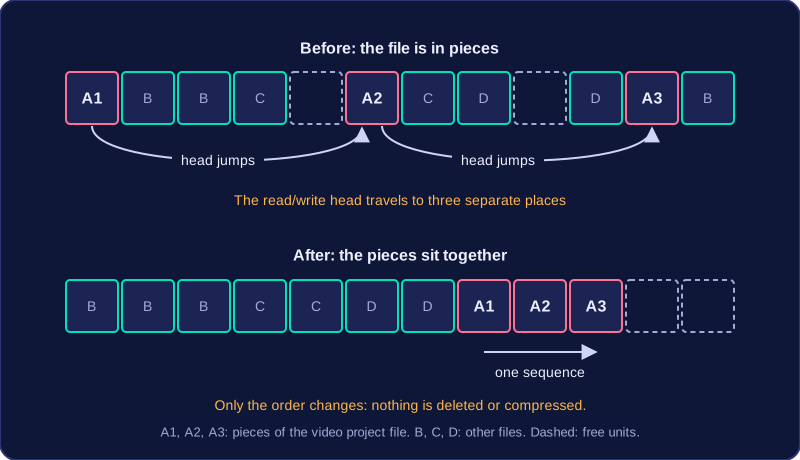
Defragmentation only rearranges files. It does not delete unused files, and it does not compress files to make them smaller. Any improvement in speed comes from storing the parts of each file together, not from removing data.
Anti-malware software is a utility that detects and removes malicious software from a computer. It also helps prevent malicious software from infecting the system, so the computer keeps working reliably.
Malicious software is any software written to cause harm. It might delete or corrupt your files, use up storage and processing power so everything slows down, or monitor what you do. Anti-malware reduces these risks by finding harmful programs before they can do much damage.
How it protects a computer
- Detection: it scans files, downloads and email attachments for malicious code. It can scan a file as it arrives or check files already stored on the disk.
- Removal: when it finds malware, it deletes the infected file or moves it to a safe holding area so it cannot run. This stops the harmful program from affecting other files.
- Prevention: it monitors files while you use the computer and blocks suspicious programs from opening or installing. Regular scans catch malware that was missed earlier.
For example, imagine you download a file that looks like a printable party invitation. Anti-malware scans it as it is saved, spots hidden malicious code and blocks it before it can open. Without that check, the malware could delete photos or slow the computer down badly. Anti-malware is a utility, not an operating system: it runs on the operating system to add protection.
An operating system (OS) controls and manages a computer system, while utility software maintains, repairs, protects or optimises it. The OS is needed for the computer to operate; utility software is not required for basic operation.
For example, a tool that repairs a corrupted spreadsheet and a tool that shrinks a large video file are both utilities. One repairs data and the other optimises storage, yet the computer would still switch on and open an app if neither were installed.
| Feature | Operating system | Utility software |
|---|---|---|
| Main role | Controls and manages the whole system | Maintains, repairs, protects or optimises the system |
| Needed for basic operation? | Yes — without an OS the computer cannot operate | No — the computer can still start and run without it |
| Functions | Manages files, processes, peripherals and users | Carries out extra jobs such as file repair, backup, compression, defragmentation and anti-malware |
| Example | The OS on a college laptop lets you log in, open a browser and save your work | A compression tool on the same laptop shrinks a video file so it fits on a memory stick |
The OS provides the core functions that keep the system running, so every other program depends on it. Utility software provides extra functionality on top of those core functions. A utility is not the operating system, even if it came with the computer or is opened from a menu in the OS. If you removed a utility, the computer would still work, but it would lose that extra maintenance, repair, protection or optimisation.