Networks
Protocols & Layers
A protocol is a set of rules that governs how devices communicate over a network. It is not a piece of hardware, and it is not a single program you install — it is an agreed set of rules that the software on each device follows when it sends or receives data.
Devices must all follow the same rules so that they can interpret the data they exchange correctly. Two devices built by completely different manufacturers can still swap data, because both sides have agreed in advance exactly how that data will look and what each part of it means.
What the rules cover
- the format of the data — the layout of each message, so the receiver knows where one part ends and the next begins
- the order and timing — which device sends first, how much it sends at once, and how long the other waits before replying
- what to do when something goes wrong, such as a damaged message arriving or a message never arriving at all
A worked example
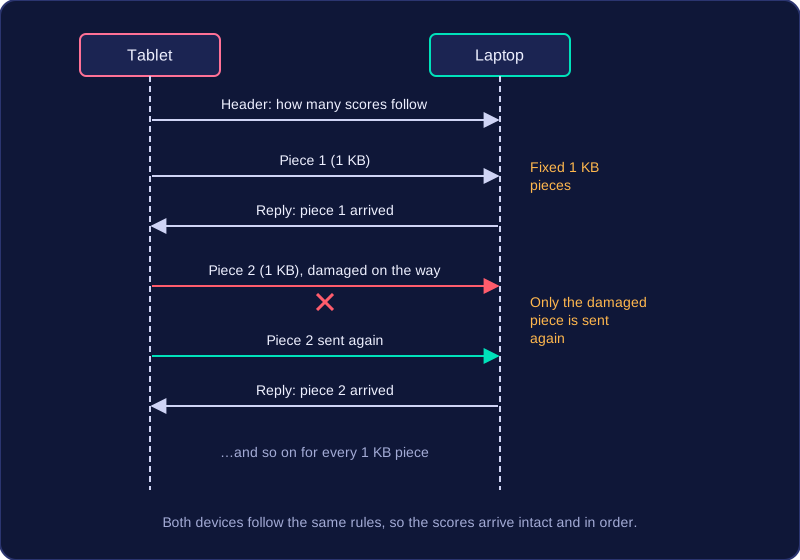
Imagine a tablet sending a 2 MB file of quiz scores to a laptop on the same network. Suppose the tablet sends everything in one long burst. The laptop has no shared rule for where one score ends and the next begins, so it splits the data in the wrong places and the scores are scrambled. Each device followed its own rules, but they were not the same rules.
Now give them a shared protocol. The tablet first sends a short header saying how many scores follow. It then sends them in fixed 1 KB pieces, and the laptop replies to each piece to confirm it arrived. If one piece is damaged, only that piece is sent again. The scores arrive intact and in the right order, because both devices were playing by the same rules.
TCP/IP is the protocol suite used for communication on the internet. It is a suite rather than a single protocol, organised into layers so each part of a transmission has a clear job.
TCP breaks a message into packets before it is sent. At the destination it puts the packets back into order, detects errors and resends any that are lost. IP routes each packet from the source IP address to the destination IP address.
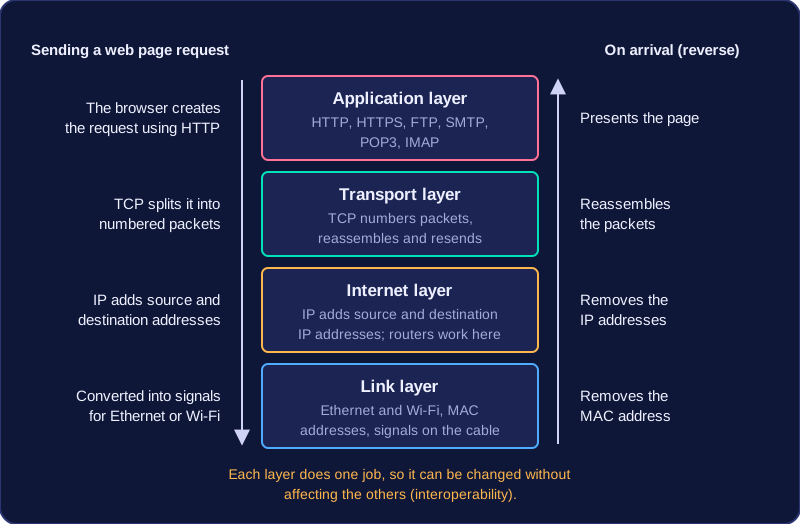
The TCP/IP stack has four layers, ordered from application at the top to link at the bottom. It is modular: each layer handles a small part of the communication.
The four layers
| Layer | Role |
|---|---|
| Application | Applications create the data to send. Application protocols operate here: HTTP, HTTPS, FTP, SMTP, POP3 and IMAP. The application in use determines which protocol is chosen. On receipt, the correct protocol presents the data to you. |
| Transport | Creates a connection between hosts. TCP numbers packets, reassembles them at the recipient, detects errors and resends lost packets. |
| Internet | Adds source and destination IP addresses. IP routes packets, and routers operate at this layer. |
| Link | Handles physical transmission through hardware and cables. It uses MAC addresses and includes Ethernet and Wi-Fi. It converts data into a signal suitable for the transmission medium. |
For example, when you load a web page, the web browser creates the request using HTTP at the application layer. TCP splits it into numbered packets at the transport layer, IP adds source and destination addresses and routes it at the internet layer, and the link layer converts it into signals for Ethernet or Wi-Fi. On arrival the layers work in reverse: the link layer removes the MAC address, the internet layer removes the IP addresses, the transport layer reassembles the packets, and the application layer presents the page.
Why layering helps
Each layer is self-contained, so its function can be changed without affecting the others. Different hardware and software can operate at a particular layer, which provides interoperability: equipment and software from different providers can work together. A sender and receiver using different hardware and software can still communicate because they use the same protocols at each layer.
Ethernet is the standard, or protocol, for wired network connections between devices. When computers, printers and switches are joined together with cables, Ethernet is the set of rules they all follow so that the data one device sends is understood by the device that receives it.
A shared set of rules is needed because hardware alone cannot make devices able to talk to each other. Every device must package the data in the same way, send it along the cable in the same way and read incoming data in the same way. Ethernet sets out those rules, which is why equipment built by different companies still works together on the same network.
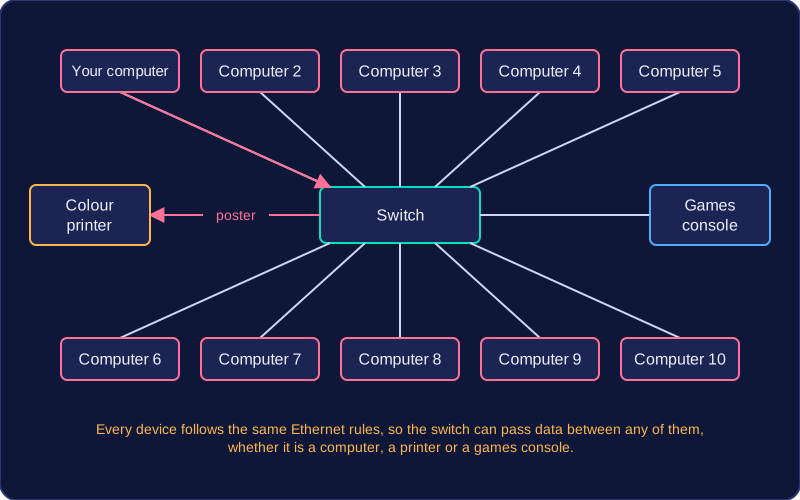
Worked example: a school art room has ten computers and one shared colour printer, all plugged into a central switch with cables. You send a poster to print. Your computer packages the data following Ethernet rules and sends it down its cable to the switch, which passes it on to the printer. The printer recognises the same rules and prints the poster. It makes no difference what the device is, either: plug a games console into a spare port on the switch and it sends its data in exactly the same way, and the printer is understood just as well, because every device follows Ethernet rather than its own private rules.
Ethernet is not a wireless standard. Wireless devices such as tablets connect using Wi-Fi instead; Ethernet always needs a physical cable between the device and the network.
HTTP (HyperText Transfer Protocol) is the protocol a web browser uses to request web pages from a web server. The web server answers each HTTP request by sending the requested web page back to the browser, which then displays it on screen.
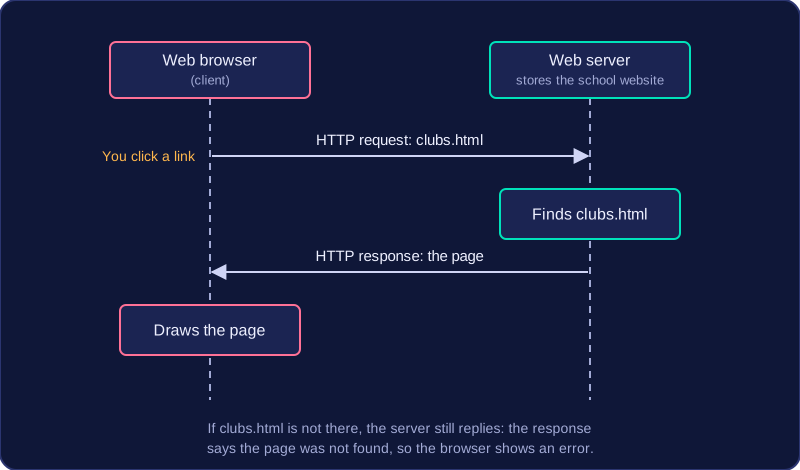
HTTP works as a request and response pair. The browser sends an HTTP request that names the server and the page it wants. The web server receives it, finds that page, and returns it in an HTTP response. Your browser cannot show a page until the response carrying its content has arrived, so a slow connection means a slow page.
A worked example
Suppose you click a link to a page called clubs.html on your school's website. Your browser sends an HTTP request naming clubs.html to the server that stores the site. The server locates the file and sends it back in an HTTP response. The browser reads the response and draws the page for you. If the file is not there, the server still replies, but the response reports the page as not found, so the browser shows an error instead of the page.
HTTP itself does not encrypt the messages, so anyone able to intercept them could read the page content. The encrypted version of HTTP is HTTPS.
HTTPS is the secure version of HTTP. It is the protocol your browser uses to request web pages, but with one vital extra: everything sent between your device and the web server is encrypted, scrambled so that anyone who intercepts it sees only meaningless characters.
Why encryption matters
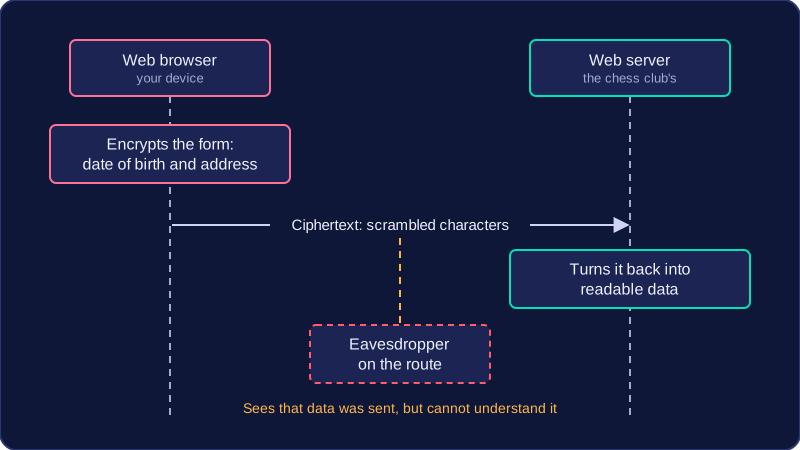
When you load a page over HTTP, the data travels across the internet as plain text. Any device on the route, such as a shared router in a café, can read the contents. With HTTPS, that same data is turned into ciphertext before it leaves your device and is only turned back into something readable by the server at the other end. An eavesdropper can still see that data was sent, but cannot understand what it says.
For example, imagine you enter your date of birth and home address into a form to join an online chess club. Over HTTP, both would be visible to anyone snooping on the connection. Over HTTPS, they arrive at the club's server intact while remaining unreadable to everyone in between.
When HTTPS is used
HTTPS is chosen wherever personal or sensitive information is transmitted, because the cost of that data being read is high. That covers:
- logging in with a username and password, so the credentials cannot be captured and reused
- submitting your home address and date of birth to register with a doctor's surgery online
- sending messages or uploading documents that are meant to stay private
- any page where you are signed in and the server sends your account details back to you
A browser usually shows a padlock symbol to tell you the connection is using HTTPS. That padlock confirms the data is encrypted in transit; it does not prove the website is trustworthy or that the information it shows is accurate, so treat it as a sign of protection rather than a guarantee of honesty.
HTTPS and HTTP side by side
| Feature | HTTP | HTTPS |
|---|---|---|
| Purpose | Requests and delivers web pages | Requests and delivers web pages securely |
| Protection of data | Sent unencrypted; readable if intercepted | Encrypted; unreadable if intercepted |
| Typical use | Public pages with nothing private on them | Logins, payments, personal details, private messages |
HTTPS is not a different protocol doing a different job: it is HTTP with encryption added, which is why the two share the same name.
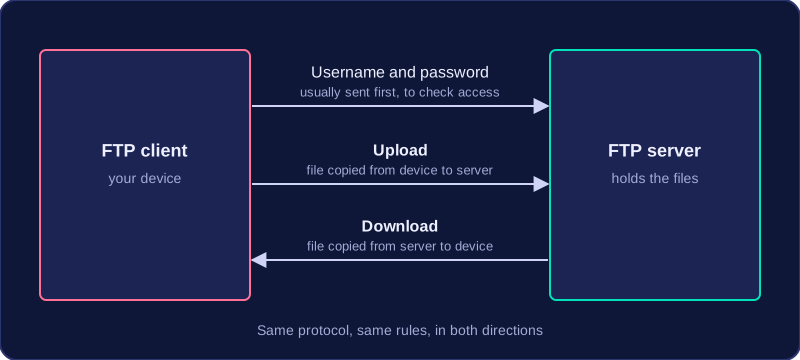
FTP (File Transfer Protocol) is the protocol used to upload files to an FTP server and to download files from one. Uploading means copying a file from your own device up to the server; downloading means copying a file from the server down to your device.
Client and server working together
The device that sends or fetches the files runs FTP client software, and the machine holding the files is the FTP server. Because both sides follow exactly the same set of rules, they can agree on which file is wanted and how many bytes it should contain, so the client can tell when the whole file has arrived. The client usually signs in with a username and password first, which lets the server check whether you are allowed to reach the stored files.
For example, a school's model railway club keeps its wiring plans on an FTP server. A member writes a new plan at home and uploads it, and another member on a different computer downloads it the next day. It is the same protocol doing the work in both directions.
A protocol, not a file format
FTP is a set of communication rules, not a kind of file. A file called wiring.pdf is still a PDF while it travels by FTP, because FTP is only the method used to move it. A file type is shown by its extension, such as .png or .wav, while FTP describes how the file was transferred, so the two are different things.
SMTP (Simple Mail Transfer Protocol) is the protocol used for sending email. It moves a message from the email software on a device to a mail server, and then from one mail server to another.
How an outgoing email travels
- Your email software uses SMTP to send your message to your mail provider's outgoing mail server.
- That server uses SMTP to relay the message to the recipient's mail server.
- The recipient's mail server stores the message until the recipient retrieves it.
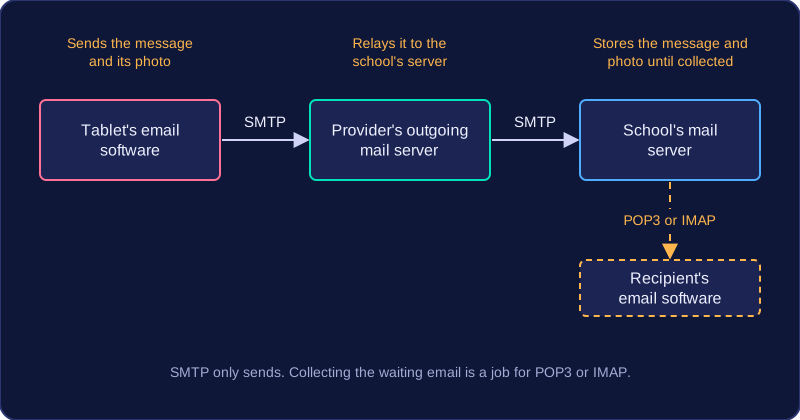
For example, you send a message with a photo attached from a tablet. Your email software uses SMTP to send it to your provider's mail server, which relays it to your school's mail server. The message and its attachment wait on that server until they are collected.
SMTP sends, but it does not retrieve
SMTP has one job: sending. It does not fetch incoming messages or attachments from a remote mail server. That retrieval job belongs to POP3 or IMAP, which fetch messages and attachments from the mail server. If you are collecting an email that is waiting for you, SMTP is not the protocol doing that work.
POP3 (Post Office Protocol version 3) is an email retrieval protocol. It is the set of rules your email software follows to collect incoming messages from your mail server and bring them down to your own device. Sending mail is a separate job, handled by SMTP.
Downloading to one device
When an email account is set up using POP3, the email app contacts the mail server and downloads the waiting messages onto your device — a laptop, phone or tablet. They are stored there, so you can read and organise them even when you have no connection.
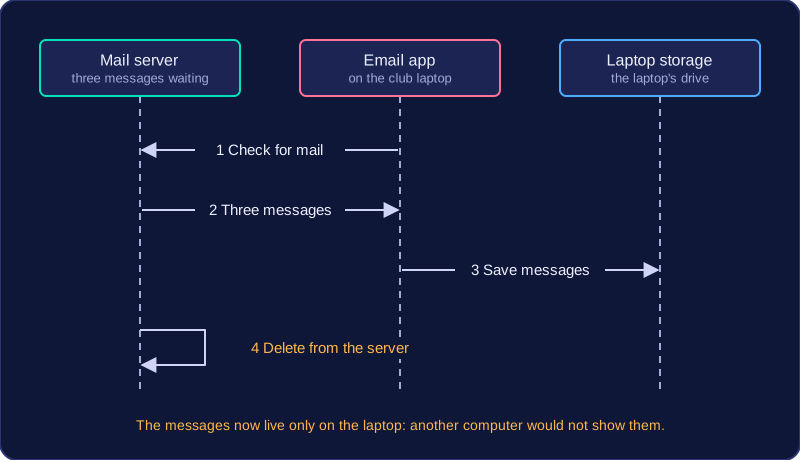
For example, Priya sets up her school club's inbox with POP3 on the club laptop. When she checks for mail, the server hands over the three messages waiting for the club and they are saved on the laptop's drive. She can read them on the bus home with no signal at all.
Messages are normally deleted from the server
Once a message has been downloaded successfully, POP3 normally deletes it from the server. The server acts as a holding point rather than a permanent store: it keeps mail only until a device collects it. This frees up space on the server and means each message lives in one place — on the device that downloaded it.
The effect is that the message is now tied to that device. If Priya later opens the club account on a different computer, the three messages will not appear there, because they were moved to the laptop rather than left behind. If the laptop is lost or broken, those emails are lost with it unless they were backed up somewhere else.
IMAP (Internet Message Access Protocol) is an email retrieval protocol: it is the set of rules a device follows to collect email that is waiting for you on a mail server. Its key feature is that it does not take messages away — they stay on the server.
Messages stay on the server
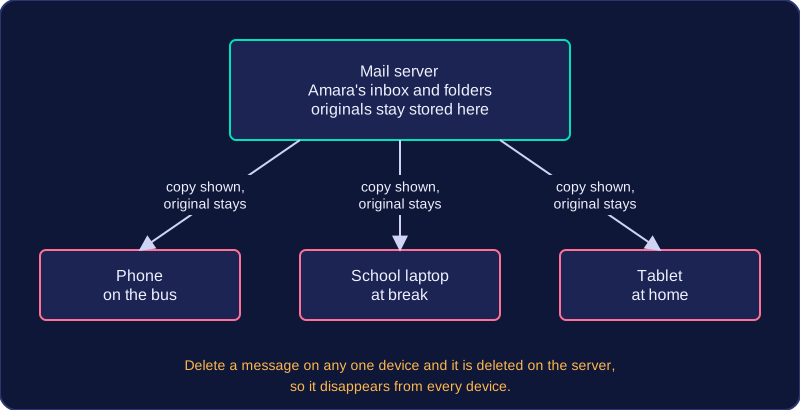
When your email app checks your inbox using IMAP, the server sends it a copy of each message so you can read it, but the original stays where it is. A message is removed only when you delete it, and because that deletion happens on the server it applies everywhere.
Because the mailbox lives on the server rather than on one machine, the same account can be used from several devices. Imagine Amara reading email on her phone on the bus, then on a school laptop at break, then on a tablet at home. Each device shows the same inbox, with the same folders and the same read and unread messages, because each one is looking at the copy held on the server rather than downloading and keeping its own. This is also why IMAP suits people who switch devices often: nothing is stranded on a single computer.
| What you do | What happens on the mail server |
|---|---|
| Open your inbox on a tablet | A copy is shown on the tablet; the originals stay stored |
| Read a message on your phone | The message stays, and it shows as read on other devices too |
| Delete an old newsletter | The message is removed from the server, so it disappears from every device |
Access through a web browser
IMAP is not limited to a dedicated email program. Because the messages are held on the server, you can also log in to the same account through a web browser and see the same inbox, folders and read markers — the browser is simply another way of viewing the one stored mailbox, not a second copy of it. POP3, by contrast, downloads messages to one device and normally deletes them from the server, which is why it does not give you this shared, multi-device inbox.