Input/output
File Handling
Contents
A CSV file (comma separated values) is a plain text file that stores data in a table-like form. Each line of the file holds one record, and the fields inside that record are separated by commas.
Here is a file listing members of two after-school clubs:
| Line in the file | Record it holds |
|---|---|
Zara,14,Chess | name Zara, age 14, club Chess |
Milo,15,Robotics | name Milo, age 15, club Robotics |
Priya,14,Chess | name Priya, age 14, club Chess |
Nothing in the file states what each field means. The order of the fields does that job, so every line has to use the same order and the same number of fields — the first field is always the name, the second always the age, and so on. That fixed layout is what turns three separated pieces of text into a record you can make sense of.
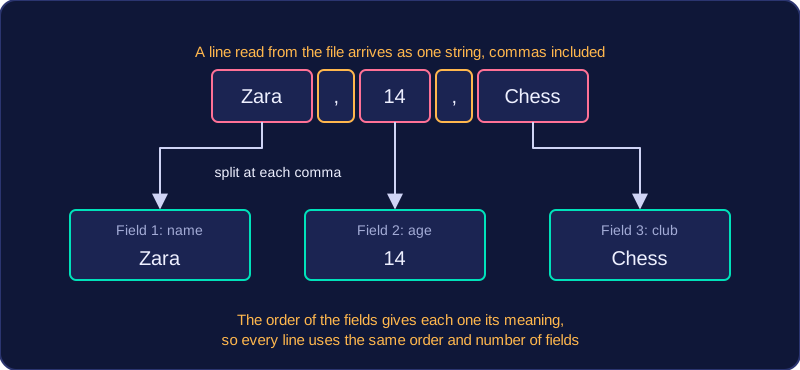
A CSV file often uses the .csv extension, but it can use .txt just as well, because an extension is only part of the file's name and does not change what is inside. The file is opened and read in exactly the same way as any other text file. The comma has no special meaning to the computer: it is just a character sitting in the text. When a line is read into a program it arrives as one long string with the commas still inside it, so the program has to split each line on the comma to recover the individual fields.
CSV files are useful because they are simple and readable — you can open one in a text editor and see the data straight away. They are also a common exchange format: a spreadsheet or a database can save its table as a CSV file, and the program you write can then read that file without knowing anything about the software that made it, so data passes easily between different programs and systems.
Before a program can read from or write to a file, it must open it. The open() function takes two strings: the file name and the mode. It returns a file handle, which you store in a variable such as points_file and then use for every later read, write and close. The handle is your only link to the file, so keep it in a clearly named variable instead of calling open() again each time.
For example, open("house_points.txt", "a") returns a handle for adding to that file, and every line already stored in it stays where it is.
| Mode | Opens the file for | What happens to existing contents |
|---|---|---|
| "r" | reading only; the file must already exist | left untouched |
| "w" | writing; the file is created if it does not exist | wiped, even before anything new is written |
| "a" | appending; the file is created if it does not exist | kept, with new data added after it |
Choosing the mode wrongly loses work. Opening an existing file with "w" empties it the moment it opens, so every record disappears before you have written anything. Use "a" when you want to keep what is already stored and add to the end of it.
Closing the file
close() tells Python you have finished with the file. It makes sure any waiting changes are saved to the disk and releases the file so other programs can use it. Call it once, after all your reads or writes; if you close inside a loop that is still writing records, the next write fails because the file is already shut.
Closing automatically
You can also write with open(...) as ..., which opens the file and closes it for you at the end of the indented block underneath. Every statement in that block can use the handle without closing it, and when the block finishes the file shuts itself, so it can never be left open by mistake.
Once a CSV file has been opened for reading, the file handle can be used directly in a for loop. Each repeat of the loop gives you the next line of the file as a string, so the first repeat gives the first record and the last repeat gives the last one. When no lines are left, the loop ends on its own.
Works with any number of records
Because the loop stops at the end of the file, the same program works whether the file holds 4 records or 400. You never need to know the number of lines in advance, so avoid a loop with a fixed repetition count. If the data has already been loaded into a list, work with that list rather than opening the file again and re-reading records you already have.
Remove the newline, then split
Every line read from a text file ends with the line feed character, "\n", because that is what separates one record from the next in the file. It is not part of the data, so remove it with strip(), which takes whitespace off both ends of the line, before you do anything else. If you split first, the newline stays stuck to the last field, so a test such as fields[1] == "Mountain" fails and the value prints with a line break in the middle of your output.
Once the line is clean, split(",") returns a list of the fields, one item per value, in the order they appear in the record. A line such as B12,Mountain,4.50 becomes ["B12", "Mountain", "4.50"], and the third field needs float() before you can do arithmetic with it. Process each record inside the loop as soon as it is read: the logic stays clear and the same data is never stored twice.
write() takes one string and sends exactly those characters to the file at the current position. It adds nothing of its own — no spaces, no punctuation and no line feed. Writing "Zara,9A" and then "Leo,9B" leaves the file holding Zara,9ALeo,9B, because the second record carries straight on from the first. To put each record on its own line you add the newline character "\n" to the end of the string yourself, so the line becomes "Zara,9A\n". The file has no idea where one record ends — the line feed is the only thing that marks it.
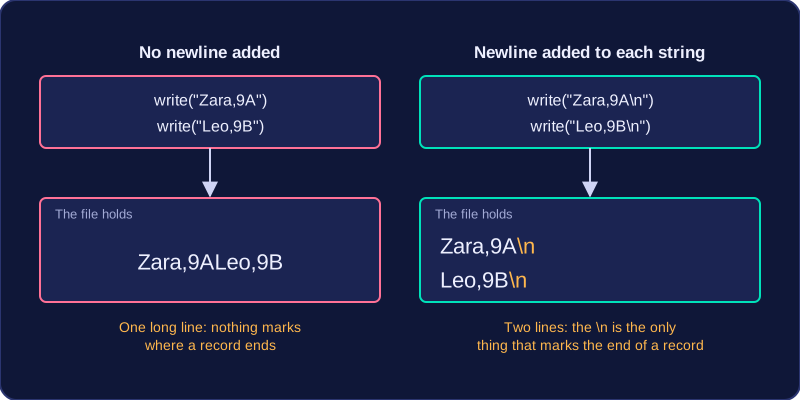
writelines() takes a list of strings and writes them all, one after another. It still puts nothing between them, so every string in the list must already end with "\n". A list holding "Zara,9A" and "Leo,9B" with no newline characters produces one long run-together line, exactly as two write() calls would.
Build each record as one complete string and call write() once for it, rather than calling write() separately for the name, the comma, the class and the rest. One call per record is easier to read, keeps the commas and the line feed together in one place, and lets you check the finished line before it is saved.
For example, if one list holds player names and a second list holds their scores, a single loop can step through both lists with the same index. Inside the loop, join the name, a comma, the converted score and the newline character into one string, then pass that string to write(). The str() call matters because the scores are numbers and + only joins text. Because the "\n" is part of the string being written, the loop copes with any number of records, and each one still begins on a fresh line when the file is opened again.
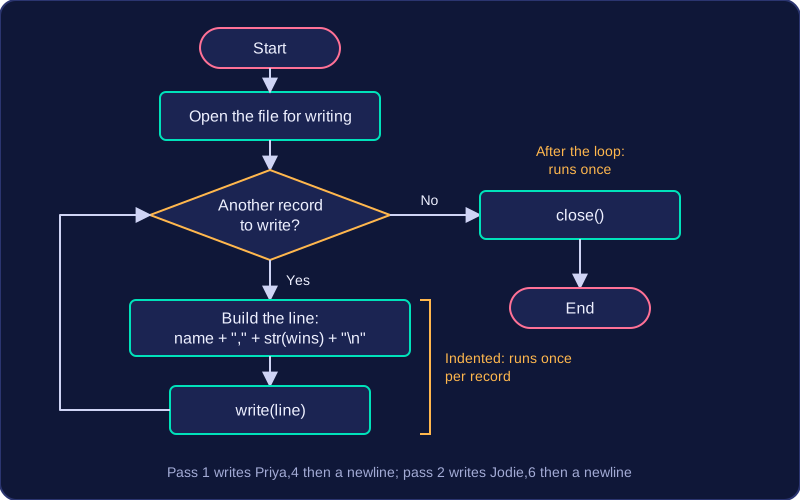
To write CSV data, build each output line as one string and send that whole string to the file with write(). The fields go in the order the format requires, joined with +, with a comma between one field and the next but not after the last field. A trailing comma creates an extra empty field when the file is read back, so the record no longer matches the expected output. Finish the line with the newline character "\n" so the next record starts on a fresh line.
| Record | Line built and written |
|---|---|
| Priya, 4 wins | Priya,4 then a newline character |
| Jodie, 6 wins | Jodie,6 then a newline character |
Each row becomes one string: name, comma, wins, newline. Converting the wins value to text first lets it be joined to the name with +, and the comma sits only between the two fields.
Place the statements carefully
Keep write() inside the loop so every record produces a line, and keep close() after the loop, lined up with the for statement. Indentation is what decides this: indented statements run once per record, while statements at the loop's level run once, after the loop has finished. The file therefore stays open until every record has been written; closing inside the loop would shut it after the first record and the rest would be lost.
Use constants
Store the file name and the separator characters in constants and use those constants throughout the program. If the file name or the comma needs changing, you edit one line rather than hunting through repeated text.
Check the finished file
If the output file is checked against an expected format, the field order, every comma and every newline must be exactly right. Compare your finished file with the expected version line by line to catch a missing comma, an extra comma, or two records joined onto the wrong line.