Networks
Protocols
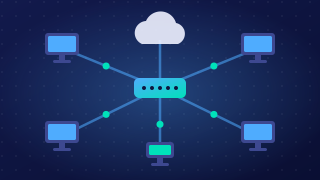
A protocol is an agreed set of rules that governs how data is exchanged between devices. Every device taking part follows the same rules, so each side knows exactly what to expect and when.
The point of sharing these rules is compatibility. A tablet, a smart speaker and a printer built by three different companies can all work on the same home network, because each one follows the same agreed rules, whatever company made it. It is the rules that are shared, not the equipment: two completely different machines can swap data perfectly as long as the sender and receiver use the same protocol.
What the rules cover
- How communication starts and ends, so both devices know when to begin sending and when the exchange is finished.
- How data is formatted and organised, such as the order of the parts of a message and how big each chunk may be.
- How devices are addressed, so the data arrives at the intended recipient rather than any device on the network.
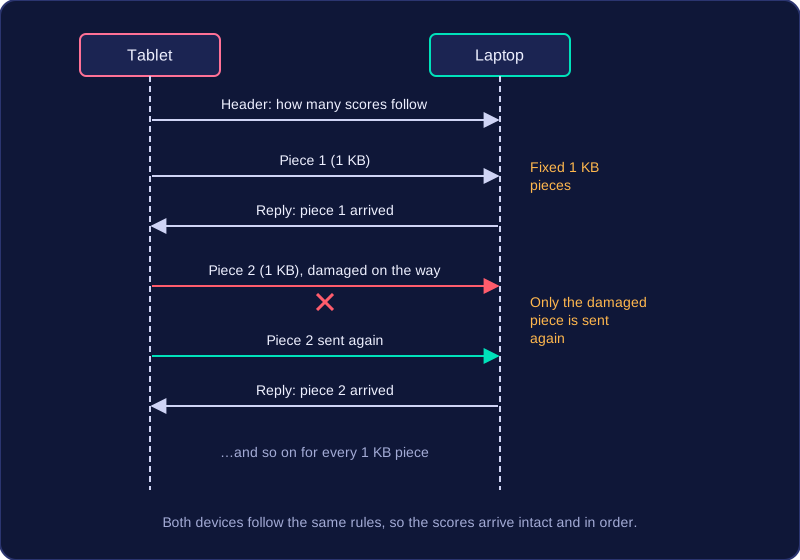
- How errors are detected and handled, including requesting that damaged or missing data is sent again.
For example, a tablet sending a photo to a wireless printer might follow a protocol where both devices first agree to begin, the tablet sends the image in numbered chunks of an agreed size, the printer checks the numbers and asks for any chunk that never arrived, and the link is closed once the last chunk is confirmed. Change the tablet for a phone from another brand and the transfer still works, because the protocol has not changed.
Different jobs need different protocols
No single protocol suits every task, so a range of protocols exists. Each one is built around a particular job, such as requesting a page from a website, copying a document from one machine to another, handing a message to a mail server, collecting messages from a mailbox, or breaking data into packets and steering those packets towards their destination. Because each design is tailored to its own task, the protocol you pick should depend on the job you need doing.
TCP/IP is a pair of protocols that work as a team to carry data between devices. The internet is built on them: every web page, email and file you receive arrives because TCP and IP work together. TCP (Transmission Control Protocol) breaks data into packets and makes sure every packet arrives, while IP (Internet Protocol) deals with addresses and works out the route to the destination.
TCP: splitting and checking
TCP takes the data being sent and divides it into chunks. Each chunk is placed inside a packet: a small piece of the data plus extra information, such as the packet number and the source and destination addresses. The numbering matters because packets can arrive out of order.
At the receiving end, TCP checks that every packet has arrived and that none are damaged. If a packet is missing or damaged, TCP asks for it to be sent again. Once everything is present, TCP rebuilds the original data by reassembling the packets in sequence.
IP: addressing and routing
IP labels every packet with the source and destination IP addresses, so the network can see where it came from and where it is heading. Routers read the destination address on a packet and forward it on towards that destination, possibly along a different route from other packets in the same file.
For example, a 40 MB recording of the school concert is split by TCP into numbered packets. Packets 6 and 19 go missing, so the receiver asks for them again. When they arrive, TCP reassembles everything in number order, while IP has made sure each packet found its way to the right computer.
TCP/IP is the right choice when data must be split into packets, checked on arrival and routed across networks to the correct destination.
HTTP (HyperText Transfer Protocol) is the set of rules a web browser and a web server use to exchange web pages. Your browser acts as a client: it sends an HTTP request asking for a page, and the web server sends that page back in an HTTP response.
HTTP does not encrypt the data. If someone intercepts the request or response, they can read the page, the web address and anything typed into the page.
| Feature | HTTP | HTTPS |
|---|---|---|
| Job | Requests and sends web pages | Does the same job as HTTP |
| Encryption | None | Data is encrypted |
| If intercepted | Can be read | Cannot be understood |
| Best for | Pages with nothing private | Sensitive or personal data |
HTTPS adds encryption
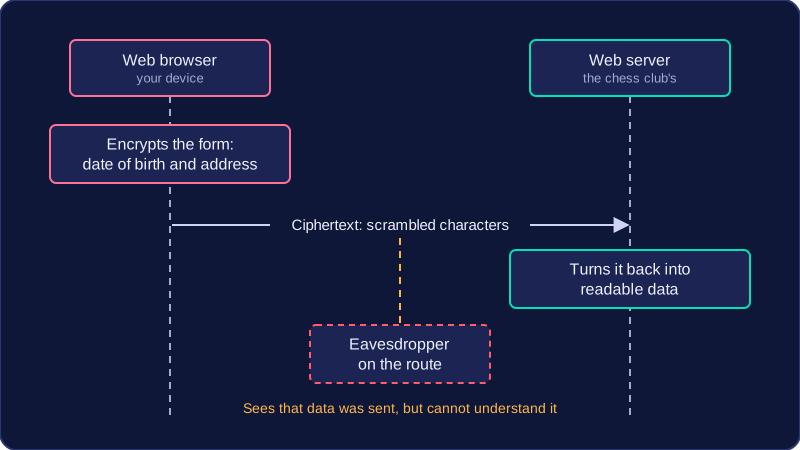
HTTPS (HyperText Transfer Protocol Secure) performs the same web-page transfer as HTTP, but it encrypts the data before it travels. Encryption scrambles the data so it looks meaningless. Only the browser and the web server can turn it back into the original page, so intercepted data cannot be understood.
Choosing HTTPS
Choose HTTPS whenever web data needs to be encrypted, especially when sensitive data is being sent. For example, a pupil sending a private message to a teacher through a school's online contact form should use HTTPS, so anyone intercepting the traffic cannot read the message. A public page such as a school lunch menu could be sent with HTTP because nothing on it is private.
The function of HTTPS is to encrypt the data. Seeing https at the start of a web address only tells you that HTTPS is switched on, not what it does. Encryption protects data only while it is travelling, and it does not check who owns a website — a scam site can set up HTTPS just as easily as a genuine one, so always check the domain name carefully before entering personal details.
FTP (File Transfer Protocol) is a protocol used to move files from one computer to another across a network. It usually works between a client, the computer you are using, and a server that stores the files.
Uploading and downloading
FTP moves files in both directions:
- Upload a file from your computer to the server.
- Download a file from the server to your computer.
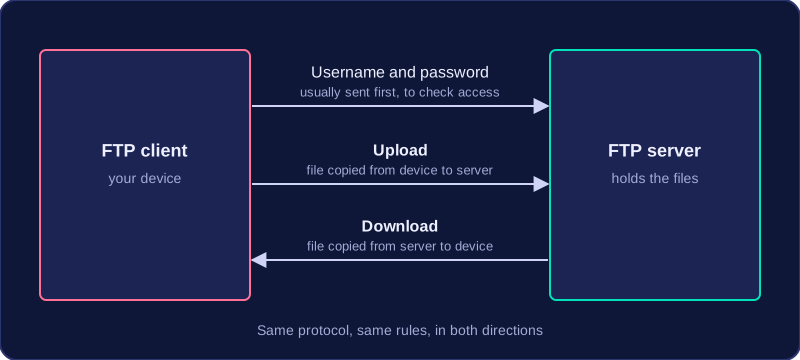
For example, a school robotics club could keep its match videos on a partner college's FTP server. A club member could download last year's videos to edit, then upload the new recordings so the rest of the team can use them.
Managing files on the server
To use FTP, you usually log in with a username and password, so the server can check that you are allowed to access its files. Once connected, FTP does more than move files: you can list the files in a folder, rename a file, or delete a file you no longer need. That means you can tidy and organise the server's storage without sitting at the server itself.
When to choose FTP
Choose FTP when the job is to transfer whole files between two computers, especially between a client and a server. If you need to send a large folder of photographs to a server, or fetch a document from it, FTP is designed for that job, because it moves whole files in either direction.
SMTP (Simple Mail Transfer Protocol) is the set of rules used to send email. It moves a message out of the sender's email software and up to their outgoing mail server; after that it relays the message between mail servers until it reaches the recipient's mail server.
Think of the mail servers as sorting offices. A message is handed over at each stage by SMTP, which agrees how the two computers will exchange the message: which computer sends the commands and which replies, how the sender and recipient addresses are passed across, and how the receiving server confirms the message has been accepted.
Where SMTP does its job
- Your email software uses SMTP to pass your message to your outgoing mail server.
- That server uses SMTP to pass the message to the recipient's mail server — sometimes via another server in between.
- The message waits on the recipient's mail server until their email software collects it.
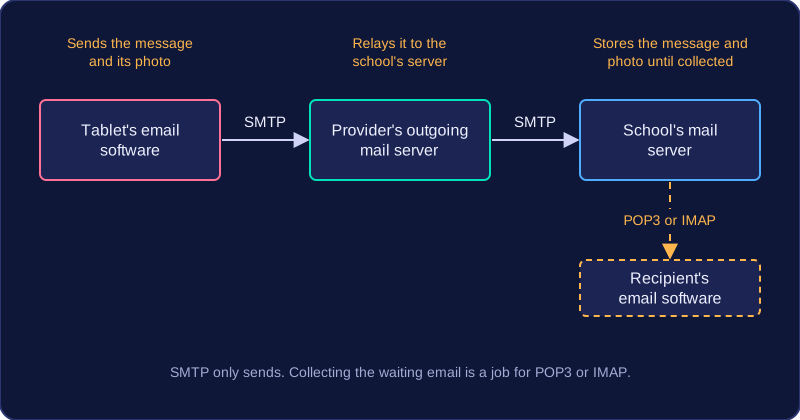
For example, a community garden group emails 14 seed-swap reminders. SMTP is used when each reminder is sent out from the group's email software and passed between mail servers. It is not used when a member later opens their inbox to read the reminder — that is POP or IMAP.
SMTP is for sending only
SMTP is not used to retrieve, download or check email; those jobs belong to POP and IMAP. If a question describes email being sent or handed between mail servers, SMTP is the protocol to choose. If it describes someone collecting or syncing their inbox, SMTP is the wrong choice.
POP (Post Office Protocol) and IMAP (Internet Message Access Protocol) are protocols that retrieve your email from a mail server — a computer that stores and handles email. Email is stored on a mail server, not a web server: a web server's job is to send web pages to browsers. Both protocols retrieve messages; sending email is a separate job.
POP: download to one device
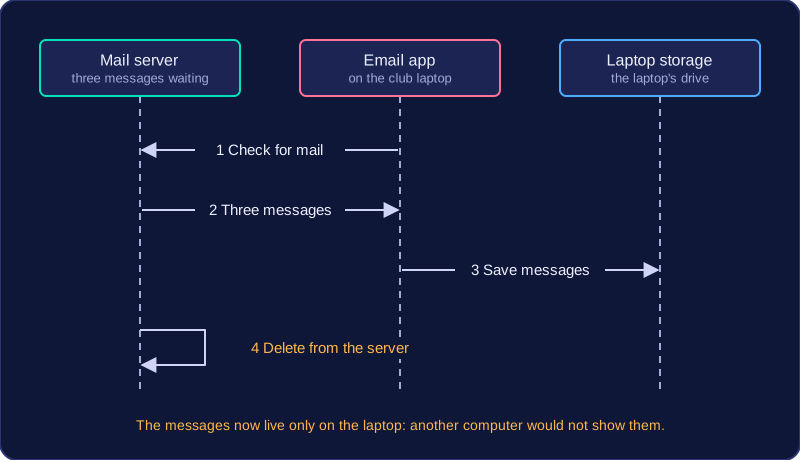
POP copies messages from the mail server onto a single device, and in most set-ups the copy on the server is removed once the download has finished. Because the message now sits on that device, you can read it without an internet connection. But it is only on that one device: it is not kept in sync with your other devices, and it can be lost if that device is lost or broken.
IMAP: keep and synchronise on the server
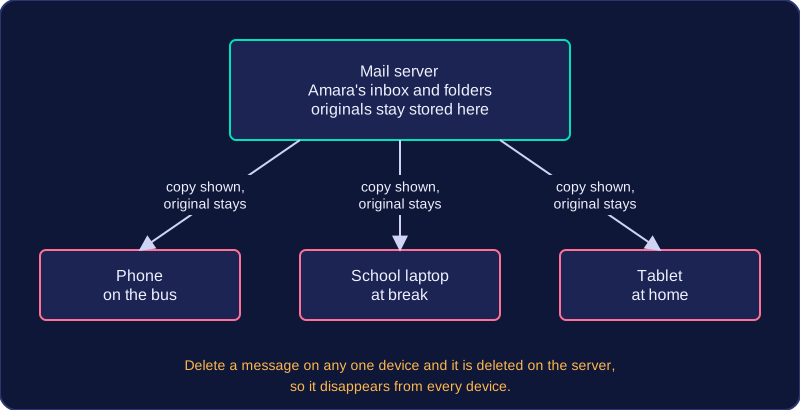
IMAP accesses and retrieves email while the messages stay on the server. Each device keeps a synchronised copy. If you read an email, delete it or move it into a folder on one device, that change is made on the server and appears on all your devices. Because messages stay on the server instead of being removed after download, an IMAP mailbox needs more server storage than a POP one.
Choosing between them
| POP | IMAP | |
|---|---|---|
| Where email is kept | Downloaded to one device; usually removed from the server | Stays on the mail server |
| Across devices | Not synchronised | Synchronised copies |
| Changes | Only on that device | Made on the server, seen on all devices |
| Offline reading | Yes, once downloaded | Designed for server storage and syncing, not offline reading |
| Server storage | Lower | Higher |
| Best for | A single device, reading offline | Email that must stay on the server and stay in sync |
Choose POP when email is to be downloaded to a single device and read offline. Choose IMAP when email must stay on the server and remain synchronised across multiple devices. For example, a message about a choir rehearsal downloaded with POP on a club computer is only on that computer. With IMAP, it stays on the mail server, so if you read it on the club computer, it is marked as read when you open your mailbox on a home computer.
A layer is one division of the job of communicating over a network. Instead of one huge set of rules doing everything, the work is split into parts. Each layer takes charge of one stage and groups together the protocols that carry out that stage, so a protocol belongs to a single layer only.
The layers are stacked, and each layer provides a service to the layer above it and uses the services of the layer below. Think of a group project: one person draws the poster, another prints it and another hands it out. Each person does one task and relies on the work passed to them.
Going down, then up
When data is sent, it moves down the stack inside the sending device. At each layer, that layer adds its own small piece of information, such as a label saying how the data should be handled. The data arrives at the receiving device and travels back up. Each layer reads the information put there by its matching layer on the sender, uses it, and strips it off before passing the rest upwards.
| Direction | What happens |
|---|---|
| Data sent | Data passes down the layers; each layer adds its own information. |
| Data received | Data passes up the layers; each layer uses and removes its own information. |
Each layer is self-contained: it handles its own task and works without needing to know what the other layers are doing.
The four-layer TCP/IP model is a common teaching example of layers in action, with data passing down and up it as each layer adds or removes its own information. What matters is that pattern of adding and removing, not the name or job of each individual layer.
A layer is not a cable or a device. It is a division of network functionality.
Networks do a lot at once: they carry web pages, email and video, over cables and Wi-Fi, between devices made by different companies. Splitting that job into layers, as in the four-layer TCP/IP model, with each layer handling one part, makes the whole thing much easier to design, understand and run. Each layer only needs to do its own job and pass data to the layer below or above.
One piece at a time
Because each layer has its own clear job, work on one layer can carry on without touching the rest. A company writing a new web browser only has to follow the rules for the layer its software works at; it never needs to know how the cables carry the signals. In the same way, a company designing a network card can build hardware for one layer only, without worrying about which program will use it.
This separation also means a layer, or a protocol inside it, can be replaced without breaking the others. A video-calling app can be updated to use a different protocol for sending its video, and the cabling and routers keep working exactly as before, because the lower layers did not change.
Made to fit together
Layers let standards be written for one job at a time. If two manufacturers both follow the rules for the same layer, their equipment can work together: a games console from one company connects to a router from another, even though neither maker knows what the other built.
Easier to fix
When something goes wrong, splitting the network into parts gives you a starting point. If a live stream freezes but web pages load normally, you can test the layer that handles the stream rather than checking every cable and device in the building. A small, well-understood part is far quicker to check than one huge, tangled system.