Software
User Management
Every person who uses a computer has their own user account, sometimes called a profile. The account identifies that person to the operating system, and it holds their own settings and permissions.
The operating system keeps a store of every account on the computer, together with each one's login details. When somebody logs on, the operating system uses the username to find that person's account. The username is the name that identifies which account is being used, so the operating system knows whose settings and permissions to apply.
Why separate accounts matter
Because each person has an account of their own, settings and permissions belong to a person rather than to the machine. When a user logs on, the operating system applies the settings saved for that account, so the computer looks and behaves the way that user set it up. It also applies the permissions attached to the account, which limits what that user is allowed to do.
For example, a computer in a community centre office is used by Sam and by Dawn. When Sam logs on, his account opens his own desktop shortcuts and his preferred display size. When Dawn logs on, her account opens her own shortcuts and her preferred display size, which is larger. The permissions attached to each account are also different, because the two people do different jobs.
This is what makes it practical for one computer to be shared: everyone gets their own space on it, set up for them.
So an account ties a person's settings and permissions to them, and the username tells the operating system which account to load.
Authentication is the process of checking a user's identity before the operating system allows them access. It answers one question: is the person logging in really the owner of this account? Without that check, anyone could sit down at the computer and use another person's account, files and settings.
Logins are handled by the operating system. When you type a username and password, the username tells the operating system which account you want to open, and the password is the evidence that the account is yours. The operating system checks the password you entered against the login details it holds for that account. Access is allowed only when they match: the operating system then lets you in. If they do not match, access is refused and you can try again.
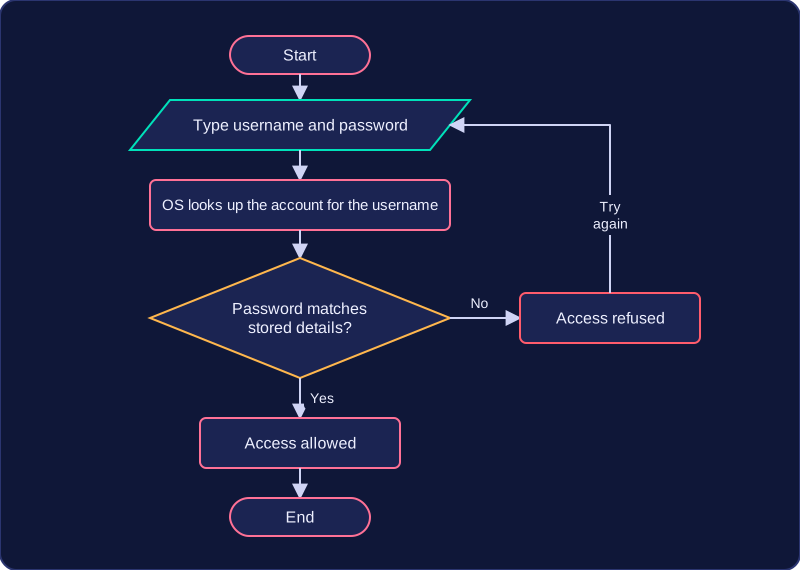
A student called Priya logs on to a laptop in the school library to use a revision program. She types priya.nair and her password. The operating system looks up the account priya.nair and checks the password she typed against the stored login details. A match authenticates her, so the revision program starts. If she mistypes her password, the operating system refuses access — even though the username is correct — because the check failed. Passwords are the most common method of authentication, but the key idea is the check itself.
Authentication is not the same as access rights. Authentication proves who you are; access rights decide what you may do once you are in. The operating system carries out the login check before any of that can happen.
Passwords are handled by the operating system. It stores each password alongside the matching user account so that it can check it at every login.
Stored passwords are never in plain text
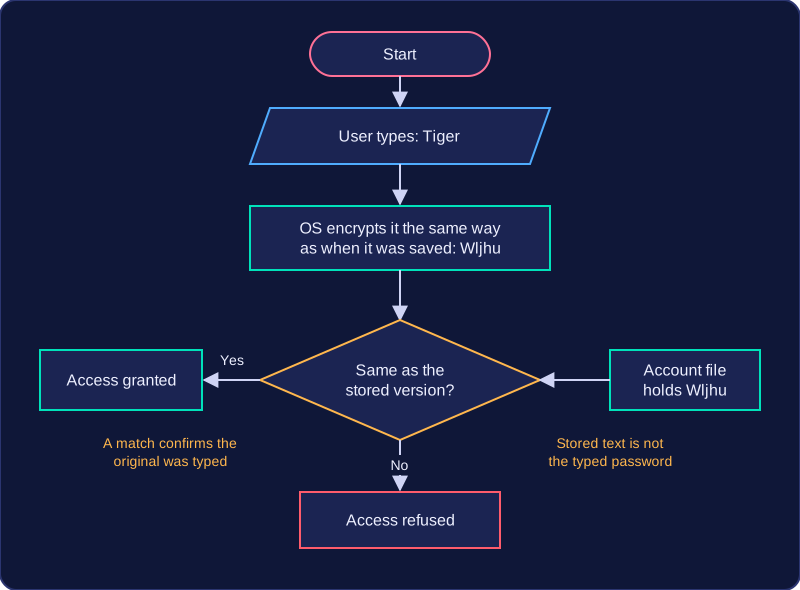
A saved password is kept in an encrypted form: it has been scrambled by a mathematical process, so the stored version does not reveal the password that was typed. The account file holds something like Wljhu instead of Tiger.
This matters because account files can be exposed — copied from a computer, seen by someone who should not have access, or leaked. If passwords sat there in plain text, anyone who saw the file could read them and then log in as that user. Encrypted, the stored text cannot simply be read off the file, so the accounts stay protected even when the stored data is seen.
Why the encrypted version can still be checked
When you log in, the operating system encrypts the password you typed in exactly the same way as when it was first saved, then compares the two versions. Because the same password always produces the same encrypted version, a match confirms you typed the original password; if the two differ, access is refused.
Access rights, also called permissions, are the rules attached to a user account that state what that user may and may not do. Authentication checks who you are; access rights decide what you can do once you are logged in. Because the rules belong to the account rather than the computer, two people logging on to the same laptop can find it behaves differently.
What permissions can control
| Area | Example on a school laptop |
|---|---|
| Files and folders | Whether an account can rename the leavers' assembly photos, or only look inside the folder |
| Software | Whether the laser cutter's design program opens, or tells that account it is not permitted |
| Hardware and storage | Whether an account can reach the shared art drive or connect a drawing tablet by USB |
| Actions and settings | Whether an account can shut down the laptop, change its clock or switch off the school's web filter |
Viewing without changing
A view-only permission lets a file open for reading, but refuses any save or overwrite. In the coding club's shared folder, a member's account can open the newsletter template to check it, but only the club leader can rename or move files, so nobody's entry ends up in the wrong place.
Different levels of access
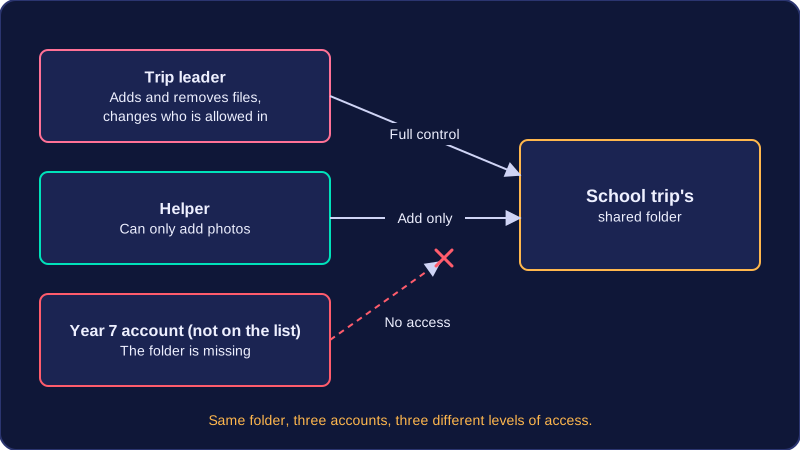
Several accounts can hold different levels of access to the same folder. In the school trip's shared folder, the leader can add and remove files and change who else is allowed in, a helper can only add photos, and a Year 7 account not on the list finds the folder missing. Permissions belong to accounts, so one machine gives each person different possibilities.
Permissions make one machine safe to share: on a shared library tablet, one student's book review opens only for their account, while another student logging on to the same tablet cannot open it. Other people's work stays private and cannot be read, changed or deleted by the wrong person. A user never grants these rights: an administrator sets them, and the operating system enforces them whenever an account logs on or uses a file or program.
An administrator is a user account with greater access rights than an ordinary user. The administrator is responsible for managing the system's users, so their account can do things an ordinary account cannot.
What an administrator does
Administrators add new user accounts and delete accounts that are no longer needed. When a member leaves a school newspaper club, deleting their account means their old login can no longer be used. Administrators also set and edit each user's permissions, deciding what each account is allowed to do. A reporter, for example, might be allowed to open the article folder and use the publishing program, but not change the club's website settings.
They can allocate or limit access to system resources, such as giving the editor account more storage for photographs and limiting a typing account to less. This stops one person using so much space that others cannot save their work.
Who enforces the rules?
Ordinary users do not set their own permissions. The administrator decides the rules, and the operating system enforces them whenever someone tries to open a folder, run a program or change a setting. If the reporter tries to change the website settings, the operating system checks the permission, finds that it is not allowed and refuses. By setting suitable permissions and making sure the operating system enforces them, the administrator ensures that only authorised users can carry out restricted actions. This keeps the system secure: each account gets the access it needs without being able to rewrite the rules themselves.
Having greater access rights does not mean there are no restrictions. An administrator account can do far more than an ordinary one, but it still works through the operating system, which applies the permissions that are in place.