Software
File Management

When you save a file, the operating system decides where it goes on the storage device. You choose a name and a folder; the operating system chooses the actual free space.
It does not simply drop the file at the first empty spot and forget about it. It records the location, so it can find the file again. If the file is spread across several free areas, the operating system notes every part that belongs to that file.
Finding a saved file later
That record is what lets you open the file again. You just open the file as usual, and the operating system uses its record to go to the right place. You never need to know which part of the storage device holds it.
Imagine you save a poster for a school charity fair. The operating system places it in free space and writes down where it went. The next day, when you open the poster, it uses that record to retrieve it.
Protecting existing files
Before writing, the operating system checks the name and folder you have chosen. If another file in that folder already has the same name, it warns you or asks you to confirm before the existing file is replaced. This stops a new save from silently overwriting something important.
This tracking matters because a storage device can hold thousands of files. Without a reliable record of where each one sits, files would be effectively lost, even though their data is still on the device.
An operating system organises files and folders using a hierarchy: layers where each level sits inside the level above it. Every folder and file has a place in this layered structure, so storage stays orderly and predictable.
The hierarchy can be shown as a tree structure. The top of the tree is the root directory, and branches lead downwards from it. Each position in the tree can be a folder or a file. The root directory is a folder, not a file, and everything else sits somewhere beneath it.
A folder can contain files and subfolders. A subfolder can itself contain more subfolders and files, so nesting can carry on for as many levels as needed. A directory is another name for a folder, and a subdirectory is a folder contained within another folder. A subdirectory is therefore never at the top of the tree.
Grouping related files together keeps storage tidy. Instead of scrolling through hundreds of unrelated items, you move down the branches that relate to the file you want, making files easier to locate.
A worked example
Imagine a school music department. The root directory is at the top. Inside it is a folder called Music. Inside Music are two subfolders, Orchestra and Choir. Inside Orchestra are the files rehearsal.mp3 and instruments.txt. Inside Choir is a file called rehearsal.mp3 and a subfolder called Recordings.
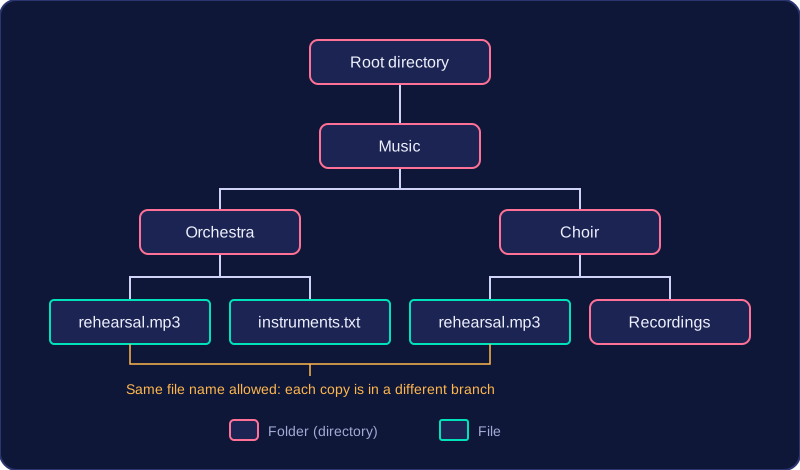
The name rehearsal.mp3 appears in both Orchestra and Choir. That is allowed because each copy sits in a different branch of the tree and so has its own place in the hierarchy.
A file path is the route through the folder structure, from the root directory all the way down to one particular file. Because it lists every folder on the way and ends with the file name, it records exactly where that file sits relative to the root.
Reading a path
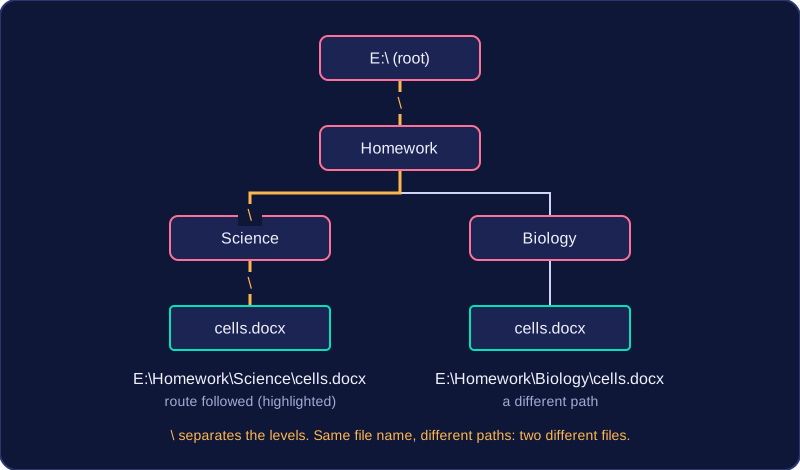
Take the path E:\Homework\Science\cells.docx. The root directory is E:\ — the top-level folder, not a file. Inside it sits a folder called Homework, inside that a subfolder called Science, and inside that the file cells.docx.
The backslashes are separators. They show where one folder name ends and the next begins, so nothing is ambiguous: without them, HomeworkScience could be read as a single long name. Other systems use a forward slash instead, as in /home/amir/art/mural.png, but the job is the same.
Why the path identifies one file
Two files in different folders can share a file name. A file at E:\Homework\Science\cells.docx and another at E:\Homework\Biology\cells.docx are both called cells.docx, but their full paths are different, so each is still identified uniquely. It is the whole path, not the file name on its own, that identifies a file. So every file has its own unique path.
Finding a file quickly
Because the path leads straight down the hierarchy, the operating system and any program can go directly to the file rather than searching the whole storage device. Opening E:\Homework\Science\cells.docx means four clear steps: root, Homework, Science, file. That is also why every part of the path must be exact — one wrong folder name points somewhere the file is not.