Software
Peripheral Management

A device driver is a program that controls a peripheral device. It sits between the device and the operating system: it turns a request from the operating system into the signals the device understands, and passes anything the device sends back up to the operating system.
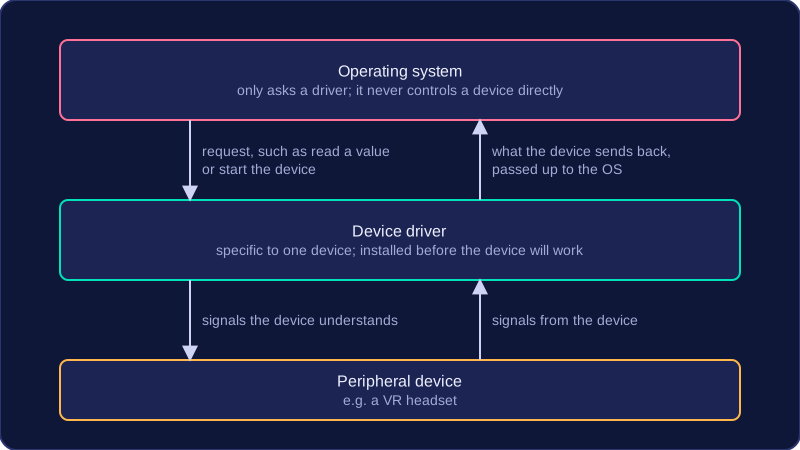
Each device needs its own driver
Every peripheral communicates with the operating system through its own device driver. The operating system never controls a device directly: it only knows how to ask a driver to do something, such as read a value or start the device. A driver is specific to the device it controls, because each make and model of hardware has its own set of commands and its own way of reporting back. A driver written for a USB microphone would be no use for a barcode scanner, even though both plug into the same type of port.
Where drivers come from
Many device drivers are included with the operating system, which is why a common peripheral often works the moment you plug it in.
A new or different device may be supplied with its own driver, either on a disc or as a download from the manufacturer, and that driver must be installed before the operating system can use the device. Until the correct driver is available, the operating system has no way of sending instructions to the peripheral, so the device will not work — even though it is connected and receiving power.
For example, the VR headsets in the art room work on the desktop computers, because the technician installed each headset's driver when the room was set up. Plug the same headset into a laptop in the library and it still lights up, but nothing else happens: turning your head does nothing and no picture appears. The laptop has a working headset attached, but no driver that understands its signals. Install the driver and the headset starts working.
| Driver included with the operating system | Driver supplied with the device |
|---|---|
| Already on the computer when you get it | Comes on a disc or from the manufacturer's website |
| Usually lets a common device work as soon as it is plugged in | Must be installed first, before the device will work |
| Covers widely used peripherals | Covers new, unusual or updated versions of a device |
A print queue is the list of print jobs waiting to be printed. It is held in a buffer, a special area of memory where the operating system keeps data waiting to be sent to a printer. This is needed because peripherals work at their own pace: a printer can only accept a small amount of data at a time, while the computer produces data far more quickly. Without somewhere to hold the surplus, the computer would have to stop and wait for the printer to catch up.
The operating system sends data from the buffer to the printer in chunks, commonly a page at a time. Each time the printer finishes a chunk, the next one is released. The buffer does not have to be inside the computer: it can sit on a print server shared by several machines, or in memory built into the printer itself.
Keeping jobs in order
When several jobs arrive, the queue keeps them in order and the operating system releases them one at a time, so pages from different documents are not mixed up. It also records whether each job is queued, printing or finished, so the operating system can manage the order and progress of the jobs. The queue is temporary memory, not the paper tray and not a pile of finished pages: once a job is done it leaves the queue and its memory is freed.
For example, the music department sends three concert programmes to the office printer: orchestra, choir and jazz band. The printer takes one sheet at a time, so the choir and jazz band programmes wait in the queue while the orchestra one prints, then follow in the order they were sent.
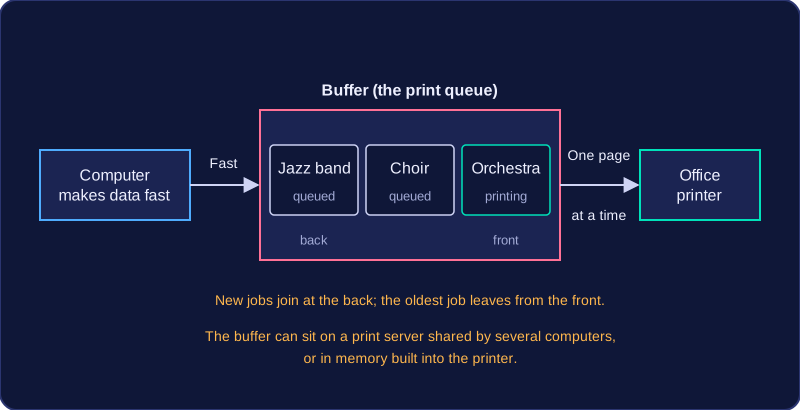
A queue works like a list where new jobs join at the end and the oldest job leaves the front.
When you print a document, the printer keeps the operating system informed about what is happening. It sends status information back to the operating system, which passes it on to you. This feedback tells you how a print job is getting on and what has gone wrong if it fails.
Following a print job
The printer can report that it has accepted a job, that it is warming up, how many pages it has printed so far, whether it is paused, and when the job is finished. The operating system collects these messages and shows them in a form you can read, often naming the document and its current state.
For example, you send thirty tickets for a school show to be printed. The operating system shows Printing page 12 of 30, then Paused: replace black toner. You can see the job is held up rather than lost, so you change the toner instead of sending the tickets again. Without that feedback you might press print a second time and end up with duplicate copies in the print queue.
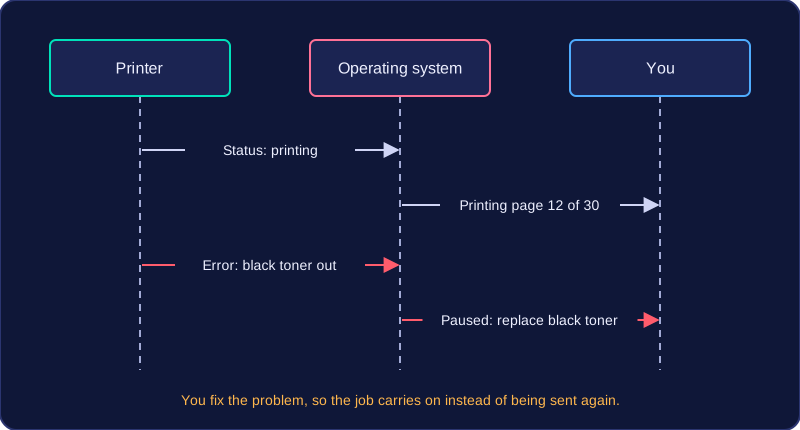
Reporting errors
If the printer cannot carry on, it sends an error back to the operating system, which reports the problem to you. This might be that the printer cannot be reached over the school network, that its front cover has been left open, or that a sheet is jammed inside. The message often names the document affected and says whether the job has been cancelled.
This matters because the computer and the printer are separate devices: the computer cannot tell on its own what state the printer hardware is in. An error message is the printer's way of asking for help, and once you deal with the problem the job can carry on or be started again. Jobs may wait in a print queue, but that never removes the need for the printer to report its status and errors.