Data Representation
Images
Contents
A bitmap image, also called a raster image, stores a picture as a rectangular grid of tiny squares arranged in rows and columns. Each square holds a single colour, so the whole picture is built up square by square rather than as smooth outlines.
Every square is a pixel, short for picture element, and it is the smallest identifiable area of the image. Zoom in far enough on any bitmap and you stop seeing a scene and start seeing separate blocks.
A computer cannot store a colour directly, so each pixel's colour is held as a binary value — a pattern of bits. The image file and the software that displays it follow agreed rules saying which pattern stands for which colour. One pattern might mean sky blue and another sand yellow; the patterns mean nothing until the rules fix them.
Seeing one pixel change
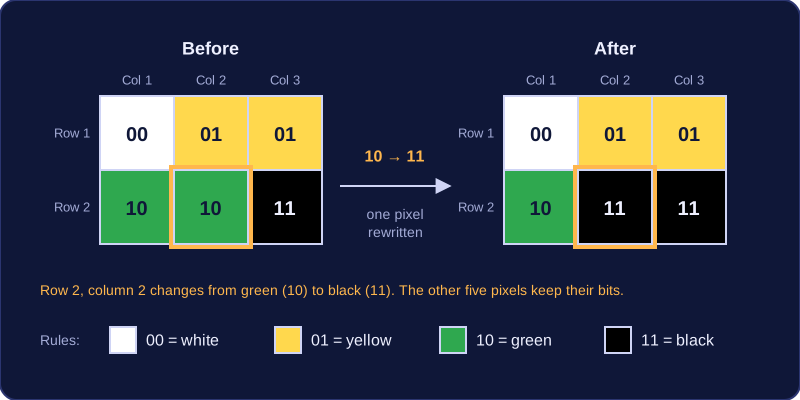
Picture a tiny 3 × 2 pixel image in which each pixel is stored using two bits, with the rules 00 = white, 01 = yellow, 10 = green and 11 = black.
| Pixel position | Stored value | Colour shown |
|---|---|---|
| Row 1, column 1 | 00 | white |
| Row 1, column 2 | 01 | yellow |
| Row 1, column 3 | 01 | yellow |
| Row 2, column 1 | 10 | green |
| Row 2, column 2 | 10 | green |
| Row 2, column 3 | 11 | black |
Now change the pixel in row 2, column 2 from 10 to 11. That one pixel flips from green to black, and every other pixel stays exactly as it was, because each pixel's bits are stored separately from its neighbours. This is what a pencil or fill tool in a drawing app does: it rewrites the binary values of the pixels you touch and leaves the rest alone.
palette = ["white", "yellow", "green", "black"]
pixels = [0, 1, 1, 2, 2, 3]
for value in pixels:
    print(palette[value])
pixels[4] = 3          # row 2, column 2 becomes black
print("after the change:")
print(palette[pixels[4]])
Output:
white
yellow
yellow
green
green
black
after the change:
black
Each position in the list is one pixel, counting from 0 as Python does, so position 4 is row 2, column 2. The program reads each stored value and looks up the colour it stands for; changing a value to 3 changes what is displayed for that pixel and nothing else. The image's resolution and its colour depth both build on this grid of independent pixels.
Resolution is the density of pixels in an image, which means how many pixels are packed into a given area. It is usually stated as the image's width and height in pixels, for example 600 × 400.
You can work out the number of pixels in the image by multiplying the width by the height. A 600 × 400 image has 600 × 400 = 240,000 pixels. The unit is pixels: this is the image's size in pixels, not its file size.
Higher resolution
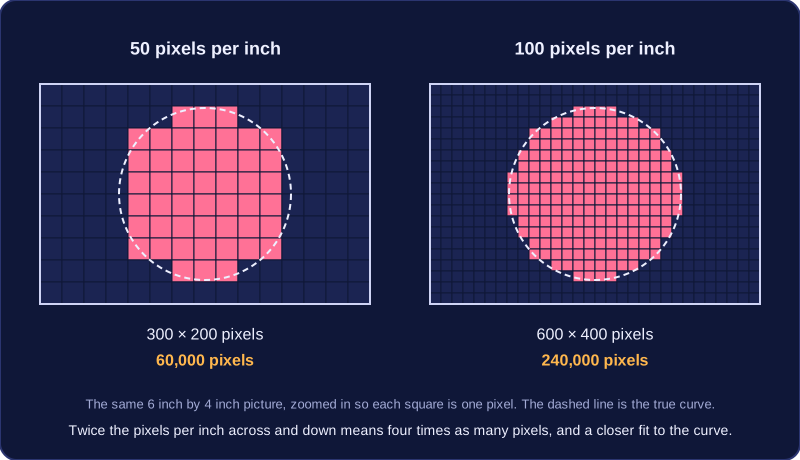
When two images are shown at the same physical size, the one with more pixels per inch (PPI) has the higher resolution. Its pixels are smaller, so they can follow the edges of shapes and small details more closely. With fewer pixels per inch, each pixel covers more of the picture, so curves can look jagged and thin features can be lost.
For example, a 6-inch by 4-inch picture at 50 pixels per inch is 300 × 200 pixels, or 60,000 pixels. The same picture at 100 pixels per inch is 600 × 400 pixels, or 240,000 pixels. The 100 PPI version has twice as many pixels per inch across and down, which is four times as many pixels in total, so it shows the scene in more detail.
Colour depth (also called bit depth) is the number of bits used to store the colour of each pixel. It is not the same as resolution: resolution is about how many pixels make up the image, while colour depth is about how many bits store each pixel's colour.
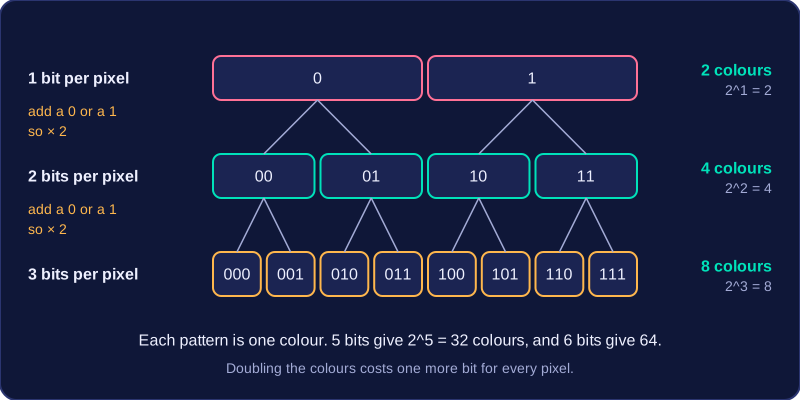
The number of different colours that can be represented is 2 to the power of the colour depth (2^n). With n bits you can make 2^n different binary patterns, and each pattern is used for one colour. Each extra bit doubles the number of colours, because every existing pattern can have a 0 or a 1 added to it. For example, a 5-bit image can use 2^5 = 32 colours, and a 6-bit image can use 64.
| Colour depth (bits per pixel) | Calculation | Colours available |
|---|---|---|
| 5 | 2^5 | 32 |
| 6 | 2^6 | 64 |
| 7 | 2^7 | 128 |
Higher colour depth gives more colours, so a photo can show subtle shades and look more realistic, but each pixel needs more bits, so the file is larger. A lower colour depth makes a smaller file but gives fewer colours, so each colour may be approximated to the nearest one available. This makes the image less accurate: smooth shading can break into visible bands as one shade jumps straight to the next.
Every colour a screen shows is made by mixing red, green and blue light. In an RGB image, a pixel's colour is stored as three separate values — how much red, how much green and how much blue — and each value is held in its own group of bits.
Splitting the bits into three groups
The bits stored for a pixel are chopped into three groups in a fixed order: red first, then green, then blue. Each group is just a binary number, so it records how strong that component should be. A group of all 0s means none of that colour, and a group of all 1s means as much of it as possible.
Adding up the bits in the three groups gives the colour depth for that pixel.
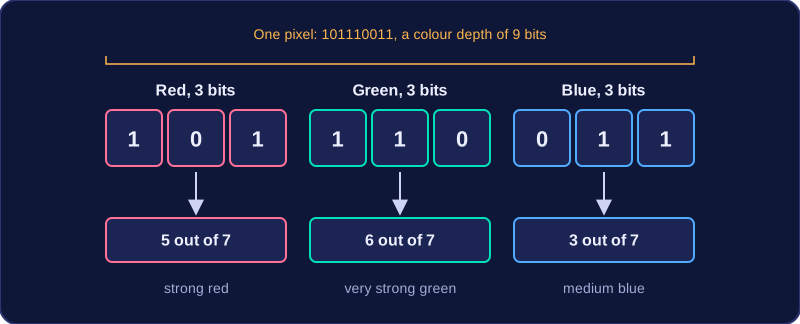
| Component | Bits | Binary value | Strength | Effect on the pixel |
|---|---|---|---|---|
| Red | 3 | 101 | 5 out of 7 | strong red |
| Green | 3 | 110 | 6 out of 7 | very strong green |
| Blue | 3 | 011 | 3 out of 7 | medium blue |
That pixel is stored as 101110011, so its colour depth is 9 bits: 3 for red, 3 for green and 3 for blue. Red and green are both high while blue is lower, so the pixel looks yellow-green.
Why three groups?
Your eye detects colour with three kinds of sensor, so any shade can be built from different amounts of red, green and blue light. With 3 bits per group each component has eight possible strengths, so the steps between shades are fairly wide. Giving a group more bits creates finer steps in that component, so the mix can be matched more closely.
When every bit in all three groups is 0 the pixel is black; when every bit is 1 all three components are at full strength, which gives white. The groups do not have to be the same size — a system could use 5 bits for red, 4 for green and 3 for blue.
The file size of a bitmap image is worked out from the number of bits needed to store all of its pixels. You calculate it in bits by multiplying the image's width in pixels by its height in pixels by its colour depth in bits. Width × height gives the number of pixels, so this is the number of pixels multiplied by the bits used for each one. Use the colour depth itself, not the number of colours it allows.
A worked example
Take an image 400 pixels wide and 250 pixels high with a colour depth of 12 bits. It has 400 × 250 = 100,000 pixels. Each pixel needs 12 bits, so the file size is 100,000 × 12 = 1,200,000 bits. Image size is 400 × 250 pixels; file size is the storage figure in bits or bytes.
Converting the answer
Bits are small, so answers are usually converted. Divide by 8 because there are 8 bits in a byte: 1,200,000 ÷ 8 = 150,000 bytes. Divide by 1024 to change bytes to kibibytes: 150,000 ÷ 1024 ≈ 146.5 KiB. Divide by 1024 again for mebibytes: about 0.14 MiB. The divisor is 1024, not 1000, because these units step up in powers of two.
Writing it as one expression
The calculation is often written as a single fraction. For bytes, put width × height × colour depth on top and 8 underneath. For kibibytes, use 8 × 1024 underneath; for mebibytes, use 8 × 1024 × 1024. So the same image in MiB is (400 × 250 × 12) ÷ (8 × 1024 × 1024).
Increasing the resolution, so using more pixels, or increasing the colour depth, so using more bits per pixel, increases the file size. A 500 × 300 image has 150,000 pixels. At 8 bits per pixel it needs 1,200,000 bits, or 150,000 bytes; at 24 bits per pixel it needs 3,600,000 bits, or 450,000 bytes. More pixels or more bits per pixel means more data to store, so the file gets larger.
A bitmap stores each pixel's colour as a binary value, and the number of bits set aside for each pixel — its colour depth — decides how many different colours you can possibly record. If an image contains more colours than the bits allow, the computer has to approximate.
Fewer bits means fewer colours
With just one bit per pixel a value can only be 0 or 1, so only two colours exist — typically black and white. A monochrome design such as a simple school crest works well this way, but a photo of a fox standing among autumn leaves does not.
Allow five bits per pixel instead and each extra bit doubles the choices, so you have 2 × 2 × 2 × 2 × 2 = 32 colours to play with. Every shade of orange in that fox photo must now be swapped for the nearest of those 32 colours. The software has not failed; there is simply no binary value left to describe anything else.
The image becomes a less accurate copy
Matching colours to the nearest available one loses accuracy. Smooth shading turns into flat patches, and two neighbouring shades that once looked different merge into one, so fine detail vanishes. What is stored is only an approximation of the original picture.
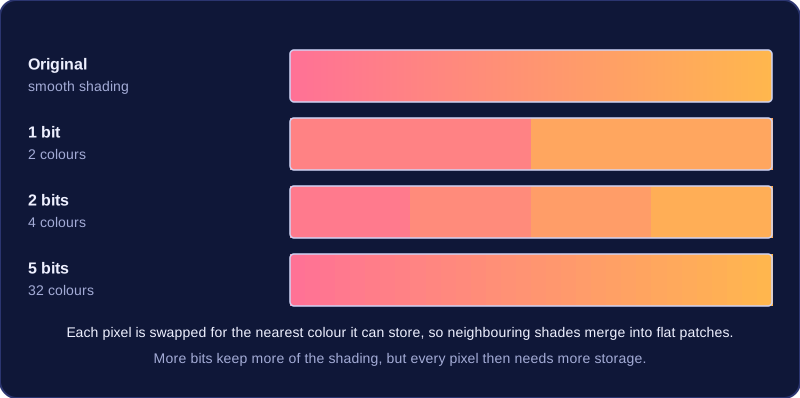
Bits per pixel is not the same as resolution. Resolution is how many pixels the image has across and down; the bits per pixel control how many colours each of those pixels can hold. Too few bits makes a colourful image look wrong, with flat patches of colour; blockiness, by contrast, comes from low resolution.
Quality against file size
More bits per pixel gives a truer image, but every pixel then needs more storage. A tablet with little space left, or a game that has to load quickly, may be limited to a small number of bits. That creates a compromise: fewer colours and a smaller file, or a more faithful image that takes up more room and takes longer to process.