Input/output
Print Function
Contents
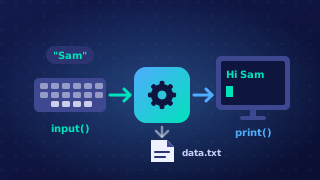
Output is the part of a program that sends data to the screen so the user can read it. Results, pieces of information and messages are all output. Input and output are two of the structural components that make up a program: input brings data in from the user, and output shows what the program has done with it.
Producing output with print
In Python 3, screen output is produced with the print function. Whatever you place inside its brackets is what appears on the screen when that statement runs.
Text must be written inside quotation marks so that Python treats it as text rather than as a variable name. Single or double quotation marks both work, and the marks themselves never appear in the output: print("Well done") displays Well done, with no quotes around it.
A variable name is written in the brackets with no quotation marks. Python then shows the value stored in that variable, not its name. If a variable called score holds the value 18, then print(score) displays 18, while print("score") would display the word score instead — the quotes turn it into text, so the program never looks at the variable at all.
A calculation or other expression can sit directly inside the brackets, so its result is displayed straight away without being stored in a variable first. print(15 * 4) displays 60, because Python works out the multiplication before printing it.
One line at a time
Each print statement starts a new line, which is how several of them build up a neat set of lines down the screen instead of one long line. print() with empty brackets displays nothing at all, so it is a simple way of leaving a blank line to space output out and keep it easy to read.
tickets = 4
price = 7
print("Cinema booking")
print(tickets)
print(tickets * price)
print()
print("Enjoy the film")
Output:
Cinema booking
4
28

Enjoy the filmA label explains what a value means. Printing a bare number such as 24 leaves the user guessing, but printing Distance in km: 24 tells them exactly what they are looking at, so the output is fit for purpose.
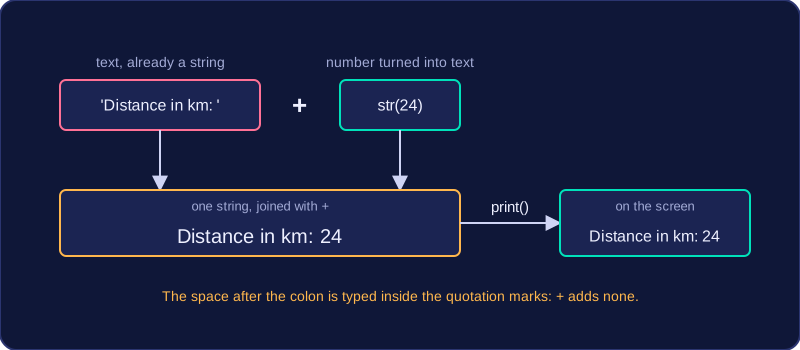
You give print() one string to display, so the label and the value are built into a single string first. Text in quotation marks is already a string, and the + operator joins it to the rest. A number has to be converted with str() before it can be joined, because + cannot mix text and numbers.
# A cycling app reports the ride so far
distance = 24
average_speed = 18.5

print('Distance in km: ' + str(distance))
print('Average speed in km/h: ' + str(average_speed))
Output:
Distance in km: 24
Average speed in km/h: 18.5
Spaces are not added for you
The + operator joins the pieces exactly as they are written and adds nothing between them, so the space after a colon has to be typed inside the quotation marks. Compare how the same value appears:
| Statement | What appears on screen |
|---|---|
print('Distance: ' + str(24)) | Distance: 24 |
print('Distance:' + str(24)) | Distance:24 |
Why str() is needed
Joining a number to text without converting it first makes Python stop with an error, so the conversion is not optional:
# Joining a number to text without str()
distance = 24
print('Distance in km: ' + distance)
Output:
TypeError: can only concatenate str (not "int") to str (line 3)When a program needs information from the user, the input function collects what the user types. The string you place inside the brackets of input() is called the prompt. It is displayed on screen before the user types anything, so it acts as the program's instructions for what to enter.
The prompt is a string, so it is written inside quotation marks, either single or double. It appears exactly as written, but the quotation marks themselves are never shown on screen. Without a prompt the program would just stop and wait, and the user would have no idea what value was expected or what kind of value to type.
Writing a clear prompt
A good prompt states exactly what is wanted, and often the unit or type of value too. Compare these two:
input('?')gives the user nothing to work with.input('Enter your age in years: ')tells the user which value is needed and in what unit.
The prompt does not start a new line, so the user's typing appears straight after it. Finishing the prompt with a space or a colon keeps the typing separate from the prompt text, so the screen stays easy to read.
The prompt is only a message shown to the user. It is not the value the program keeps: whatever the user types in response is what gets stored, never the prompt itself.
book = input('Enter the title of your favourite book: ')
author = input('Enter the name of the author: ')
print(author + ' wrote ' + book + '.')
Output when the user types Holes, Louis Sachar:
Enter the title of your favourite book: Holes
Enter the name of the author: Louis Sachar
Louis Sachar wrote Holes.
In this program the first prompt asks for a book title and the second asks for the author's name, so the user knows which value is expected before they type each one.
Labelled output is output where each value is printed alongside text that explains what the value means. A number on its own, such as 435, tells the user nothing, but Total mass in grams: 435 can be understood straight away. Labels should state the unit as well as the quantity, so add words like grams, pounds or minutes wherever they apply. The value is converted with str() so it can be joined to the label.
The label is built into the same print statement as the value it describes.
# Mass of a delivery of apples, 145 grams each
apples = int(input('How many apples are in the delivery? '))
total_mass = apples * 145
print('Apples in delivery: ' + str(apples))
print('Total mass in grams: ' + str(total_mass))
Output when the user types 12:
How many apples are in the delivery? 12
Apples in delivery: 12
Total mass in grams: 1740
Printing messages
print is not only for results. It also displays messages: an error message telling the user that the input was invalid, a confirmation message saying a booking or order went through, or a closing message that ends the program politely. A message that must appear whatever the user typed has to be placed outside any selection, so that it always runs. Put it inside a selection and it only runs on that one path, which means the user who typed something different never sees it. The position of the statement matters as much as its wording.
Fit for purpose
Output is fit for purpose when it does exactly what was asked for: the stated message, the stated layout, and the units after the value. It must also run without crashing, so cast input with int() or float() before doing arithmetic. A program that prints the right words but stops with an error partway through has not met the requirement.
The format method controls the layout of output. You write a template string containing placeholders in braces, such as {}, then call .format() on it and give it the values, separated by commas. Placeholders are filled in order: the first pair of braces takes the first value, the second pair the second, and so on.
Text outside a placeholder is printed exactly as it stands, which is what makes a template useful: a label in front of a value, or a unit straight after it, is written once instead of being rebuilt on every run. In "Time: {:.2f} minutes" only the number changes.
Format specifications
Inside a placeholder, a colon introduces the format specification. The first number sets the width of the field in columns, a full stop and a digit give the number of decimal places, and the letter f at the end shows the value as a fixed-point real number. The order is width, full stop, decimal places, letter, so {:7.2f} means seven columns wide with two decimal places.
An alignment character goes before the width: < left-aligns, > right-aligns and ^ centres. A value shorter than the stated width is padded with spaces until the field is full, so a column of numbers lines up under its heading. With {:<8}{:>6.1f} a five-letter name gains three trailing spaces, and 8.5 is shown as three spaces then 8.5, keeping the decimal points in one column.
Formatted strings
Formatted strings, or f-strings, are an alternative accepted way of inserting values and expressions into a line of output text. You put the letter f immediately before the opening quotation mark and the variable or expression straight inside the braces, so the format method is never called. A format specification still follows a colon inside the braces, so both styles can give identical layouts.
Formatting builds a new piece of text for display only, so the number stored in the variable keeps its full precision for later calculations.
The round function returns a number rounded to a stated number of decimal places. You give the value first, then the number of decimal places: round(8.6742, 2) gives 8.67. The result is a real number, so you can print it, store it in a variable or use it in a later calculation. Rounding does not pad a number with zeros, so 6.5 rounded to two decimal places is still 6.5 and prints as 6.5 rather than 6.50: the trailing zero is not part of the number.
Rounding for later use
Because round hands back a number rather than text, it suits a plain print where no layout is needed, and arithmetic that carries on afterwards. This program finds an average lap time in a kart race and shows both the tidy version and the precise one.
total_time = 47.368   # seconds for three laps
laps = 3
average_lap = total_time / laps
print('Average lap to one decimal place: ' + str(round(average_lap, 1)))
print('Average lap kept in full: ' + str(average_lap))
Output:
Average lap to one decimal place: 15.8
Average lap kept in full: 15.789333333333333
The variable still holds the full result, so the second print can show it exactly, and adding to, multiplying or comparing the rounded value works normally.
Fixed decimal places on screen
A format specification does a similar job for display: placed inside a placeholder of a template string, it shows a value to a stated number of decimal places and keeps trailing zeros, so 6.5 appears as 6.50. It produces text for the screen only, so it cannot be used in a calculation, and the variable itself is untouched.
Keeping the full value
Formatting only changes the text that is displayed, and round only returns a new number; neither alters the value already stored in a variable. Storing a rounded or formatted result back into the variable does change it, and that loses precision, making later output inaccurate.
mass = 7.4562   # kilograms
mass = round(mass, 1)
print('Stored mass: ' + str(mass))
print('Twice the stored mass: ' + str(mass * 2))
Output:
Stored mass: 7.5
Twice the stored mass: 15.0
Doubling the exact mass would give 14.9124, but the rounded figure was stored back into the variable, so the last print works from a value that is already too rough.