System Software
User and File Management

Contents
On a computer or network used by more than one person, each person needs their own user account so their work and settings stay separate. The operating system manages accounts as part of user management.
Allocating accounts
An administrator allocates accounts: they create an account when someone new needs to use the system, change its details when something needs updating, and delete it when it is no longer needed. For example, a youth theatre group runs lighting and sound from one laptop kept in the wings. The volunteer who looks after the laptop is the administrator. Each crew member has a separate account, so their cue lists and screen layout are just as they left them. When a new crew member joins for the summer show, the administrator creates an account; when a surname has been typed wrongly, she corrects the details; when the crew member leaves after the show, she deletes the account.
Each account has its own username, files and settings. When a crew member logs in, the operating system loads that person's desktop, folders and preferences, not a shared set. The operating system uses the account to keep that person's files private from other users.
Checking identity at log-in
When you log in, the operating system checks your identity, usually by comparing the details you enter with those stored for the account. If they match, it loads your account; if they do not, access is refused. This check happens before your files and settings are available, which helps stop one person using another person's account.
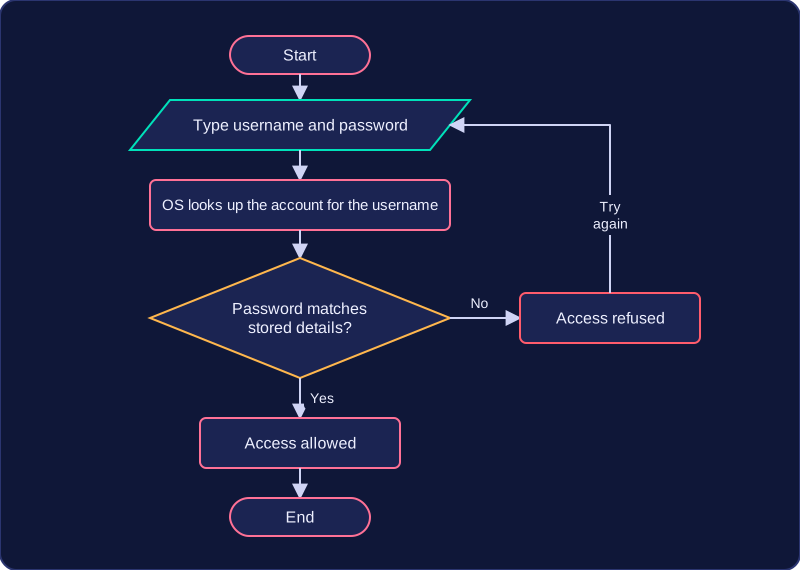
Recording log-ins
The operating system can record who logged in and when. A record might show that account tolu.lx was used at 19:42 on Friday. This helps security: if something goes wrong, the administrator can see which account was in use and at what time.
A user account is more than a name: it is the identity the operating system uses to load the right files and settings.
Access rights are the permissions the operating system gives to a user account. They decide what that user can and cannot do on the system, so not everyone who logs on has the same level of control.
Standard users
A standard user can run programs and work with their own files. They cannot install new software, change settings that affect the whole system, or set up and control other people's accounts. The operating system checks the account's rights before carrying out a request and refuses anything that is not allowed. This protects the computer: an ordinary user cannot damage shared settings by accident, and a deliberate attempt is blocked in the same way.
For example, at a youth club music room, a member's standard account can open the recording program and save a track into their own folder. When the same member tries to add a video editing package, the request is refused, because installing software is beyond what that account is allowed to do. Without that limit, one careless click could change settings that everybody who uses the machine relies on.
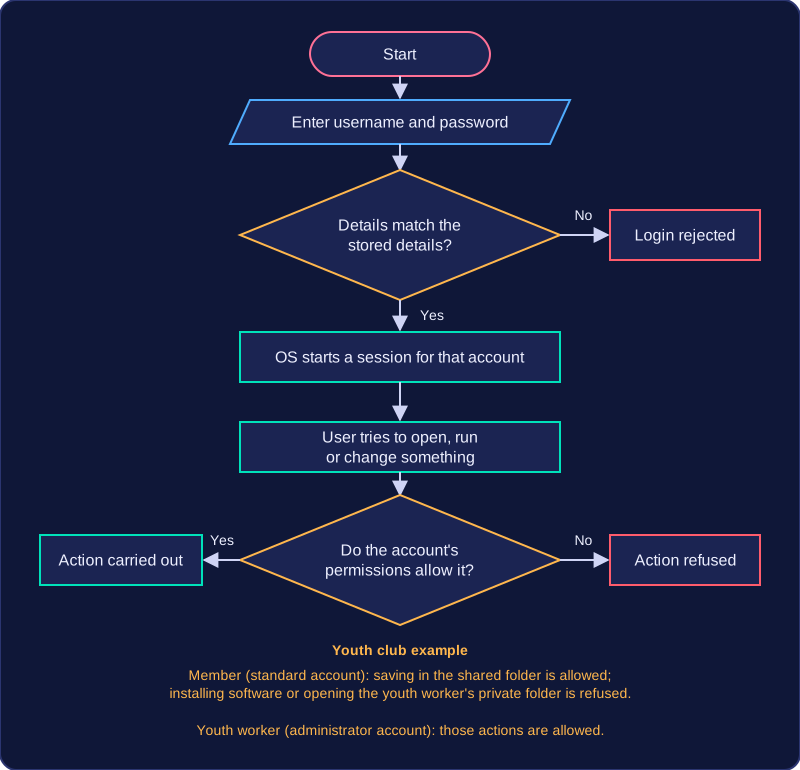
Administrators
An administrator has more rights: they can install new software, change system-wide settings and set up or control other people's accounts. That makes the account powerful, so it should only be given to people who genuinely need it. At the youth club, the technician who keeps the machines running holds the only administrator account and uses it to install updates for everyone. Fewer administrator accounts means fewer chances for the system to be changed in a way that causes problems for the rest of the users.
Access rights belong to user management, not to file management, because they are about what a person is allowed to do on the system rather than about how files are stored. They matter most on a shared computer or network, where several people use the same equipment but should not all have the same level of control.
Every file is given a name so that you and the operating system can identify it. The file extension is the part of the name after the final dot, such as .pptx or .png. It shows the file type and helps the operating system choose the correct application to open it.
| Extension | File type | Application used to open it |
|---|---|---|
.pptx | presentation | presentation software |
.png | image | image viewer |
.wav | audio | media player |
The extension is more than decoration: it tells the operating system what kind of content to expect, so a .pptx file is passed to presentation software rather than to an image viewer. The operating system goes by the extension rather than reading the contents of the file, so renaming a photo so that it ends in .wav would send it to a media player, which could not play it.
Files are stored in folders, also called directories. A folder can contain files and other folders, so folders can be nested inside one another. This creates a hierarchy, or tree structure, with a top-level folder and branches below it. For example, a top-level folder called Band Project might contain a folder called Recordings, and inside that a file called Track 1.wav. The file's location is its path through the folders, written here as Band Project > Recordings > Track 1.wav. A hierarchy helps you organise files by topic, project or type, and it makes them easier to find. You work with names, folders and paths rather than the raw blocks of data on the storage device, so file management presents files in a way people can understand.
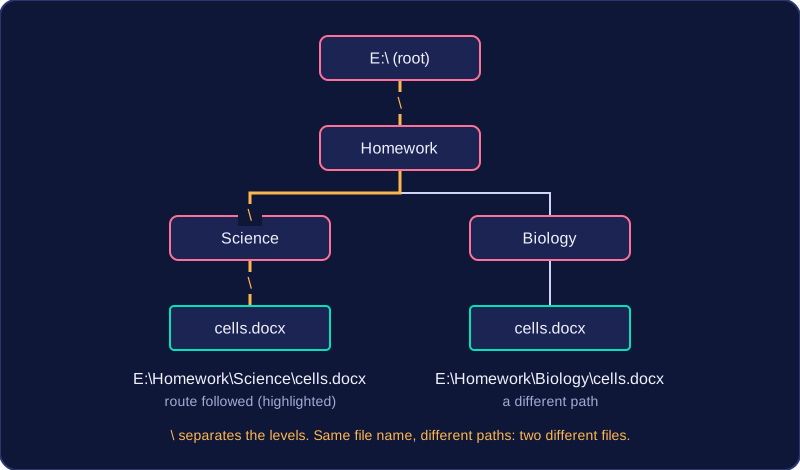
File management is the part of the operating system that organises files and folders, so that you can change them, find them and open them again.
Changing files and folders
Everyday file operations change where an item is or what it is called, but not the hardware it is stored on:
- Moving takes a file or folder out of one place and puts it in another. A poster saved as
poster1can be moved into the fundraising project folder, so it sits with the rest of that project's work. - Copying leaves the original where it is and creates a second version. Copying the poster before you edit it gives you a spare if the new version goes wrong.
- Renaming gives an item a clearer name.
poster1becomesfundraising-poster, which still tells you what it is months later. - Deleting removes an item you no longer need, which frees up the space it was using.
None of these actions change the storage hardware itself: the item is simply reordered, duplicated, relabelled or removed from the operating system's records.
Saving and finding files again
Saving writes the file to secondary storage, which keeps its contents when the computer is switched off. The operating system also records where the file is stored and how much free space remains on the device, so the file can be found again later.
Opening and searching rely on file names, extensions and folders. You can search using part of a name — typing fixtures finds every file with that word in its name — or by file type, such as every .pptx presentation inside a folder. The extension also tells the operating system which application to open the file in, so a presentation goes straight to presentation software instead of a media player. File management therefore covers both changing files and folders and finding them again.
File permissions are rules attached to a file or folder that control what each user may do with it. A permission can let you read an item but not change it, let you edit or delete it, or block you from it completely.
Permissions are set on the file, but they are checked against the user who is logged in. Before carrying out any action, the operating system checks that user's permissions. This is why you might see that a file exists and still be stopped from opening, changing or deleting it.
What each permission allows
- Read — open and view the item. A read-only file opens normally, but any attempt to save changes over it is refused.
- Edit — change the contents and save them.
- Delete — remove the item from its folder.
- No access — the item is refused, or hidden from you altogether.
Permissions keep users' files private
This is where file management and user management meet. User management gives each person an account; file permissions then use that account to decide whose work area can be opened. Setting your own folder so that other standard users have no access keeps your work private on a machine that several people use.
For example, on a youth theatre group's laptop the treasurer keeps a folder of ticket receipts that only the treasurer's account can read, edit or delete. The committee's budget summary can be read by every committee member, but only the treasurer may change it. The shared script folder can be read by everyone and edited by committee members.
| User | Receipts folder | Budget summary | Script folder |
|---|---|---|---|
| Treasurer | Read, edit, delete | Read, edit, delete | Read, edit |
| Committee member | No access | Read only | Read, edit |
| New volunteer | No access | No access | Read only |
File permissions are not access rights
Access rights decide what you may do on the whole computer, such as installing software. File permissions decide what you may do with one particular file or folder, so they belong to file management.
Two of the functions of an operating system are easy to mix up: user management and file management. When you meet a description of a task, ask yourself whether it is really about a person or about a file.
User management deals with people. Creating, changing or removing an account, checking someone's identity when they log in, deciding what a standard user or an administrator may do, keeping one person's work area private from everyone else's, and writing a record of who logged in and when — all of these are user management.
File management deals with files and folders. Naming a file and giving it an extension so the right application opens it, putting it into a folder in a hierarchy, moving, copying, renaming or deleting it, saving it and recording where it is stored, opening and searching for it, and setting what each user may do with that particular file are all file management.
Sorting the two apart
| Described task | Function |
|---|---|
| A volunteer at a food bank has their account disabled when they leave | User management |
| A recording of a band rehearsal is deleted from the music department's shared drive | File management |
| The system records that a lifeguard logged in at 07:45 before opening the pool | User management |
| A backup copy of the club's membership list is made on a memory stick before the laptop is updated | File management |
The quick test is this: if the task is about somebody's account, or about what they are allowed to do on the machine, it is user management. If the task is about organising, storing or finding files, it is file management. File permissions sit on the border, because they are tied to the user who is logged in, but they are rules about one named file, so they belong with file management. Notice too that none of this is about memory or the storage hardware — file management is about keeping files organised so you can find them again, and the correct name for it is file management, never folder management.