User and File Management
File Names and Folders

Every file is given a name so that you and the operating system can identify it. The file extension is the part of the name after the final dot, such as .pptx or .png. It shows the file type and helps the operating system choose the correct application to open it.
| Extension | File type | Application used to open it |
|---|---|---|
.pptx | presentation | presentation software |
.png | image | image viewer |
.wav | audio | media player |
The extension is more than decoration: it tells the operating system what kind of content to expect, so a .pptx file is passed to presentation software rather than to an image viewer. The operating system goes by the extension rather than reading the contents of the file, so renaming a photo so that it ends in .wav would send it to a media player, which could not play it.
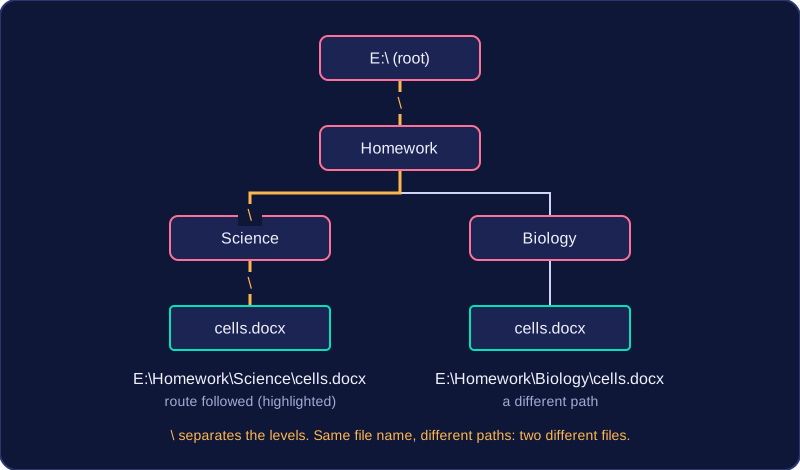
Files are stored in folders, also called directories. A folder can contain files and other folders, so folders can be nested inside one another. This creates a hierarchy, or tree structure, with a top-level folder and branches below it. For example, a top-level folder called Band Project might contain a folder called Recordings, and inside that a file called Track 1.wav. The file's location is its path through the folders, written here as Band Project > Recordings > Track 1.wav. A hierarchy helps you organise files by topic, project or type, and it makes them easier to find. You work with names, folders and paths rather than the raw blocks of data on the storage device, so file management presents files in a way people can understand.
Practise this
OCR GCSE Computer Science · User and File Management