System Software
Peripheral Management and Drivers

Contents
A peripheral is a device connected to a computer that is not part of the CPU or main memory. The processor does the computing and main memory holds the programs and data being worked on; every device attached around them, from a games controller to a projector, is a peripheral.
Input, output and storage
Peripherals are usually put into three groups:
| Type | What it does | Examples |
|---|---|---|
| Input | Sends data from the outside world into the computer | games controller, barcode reader at a till, graphics tablet |
| Output | Takes data out of the computer so it can be seen or used | projector, a robot arm moving into position, the rumble motor inside a games controller |
| Storage | Keeps data so it can be read back later | memory card from a camera, external DVD drive |
Storage peripherals are easy to overlook because nothing appears on a screen and you do not type into them, but a memory card reader is just as much a peripheral as a projector. Some devices do two jobs at once: a touchscreen shows you information and takes your taps, so it is both an output and an input device.
Many devices, all different
A computer may have lots of peripherals connected at the same time, made by different manufacturers and each working in its own way. One might send data in quick bursts, another in a slow trickle, and they do not all use the same type of connection. Data is being transferred constantly in both directions between the peripherals and the processor, so keeping track of which data belongs to which device is a job in itself. The operating system looks after this through peripheral management.
Peripherals are slow
Peripherals work at a fraction of the speed of the processor. A CPU can carry out billions of instructions every second, while a barcode reader only produces a fresh reading each time a packet is scanned. The processor would sit idle for most of that time if it simply waited, which is one reason data moving to and from peripherals has to be scheduled carefully.
Peripheral management is the operating system function that controls communication with every connected peripheral. It carries input data from each device to the program that needs it, and output data from programs to the device that should show, play or act on it.
Input data reaching the right program
When a peripheral produces data, peripheral management passes it to the program that needs it. Imagine a school sports day timing system. A pressure pad at the finish line sends a signal when a runner crosses. Peripheral management receives that signal and delivers it to the timing program, which records the time. A spreadsheet open at the same time must not receive the signal: the data belongs to the timing program, and mixing the two would corrupt both sets of data.
Output reaching the right device
Output travels the other way. A program may ask for a result to be shown, played or moved, and peripheral management sends it to the correct peripheral. In the sports day system, when the timing program produces a finishing time, peripheral management sends it to the scoreboard: that is the device chosen to display results, so the time appears where the crowd can see it.
By controlling both directions, peripheral management keeps each stream of data separate and makes sure devices and programs work together without data going astray.
Peripheral management is the part of the operating system that looks after the data travelling between peripherals and the processor. Peripherals work far more slowly than the processor, so peripheral management holds data and queues up jobs to stop the whole computer slowing down.
Holding data for a slow device
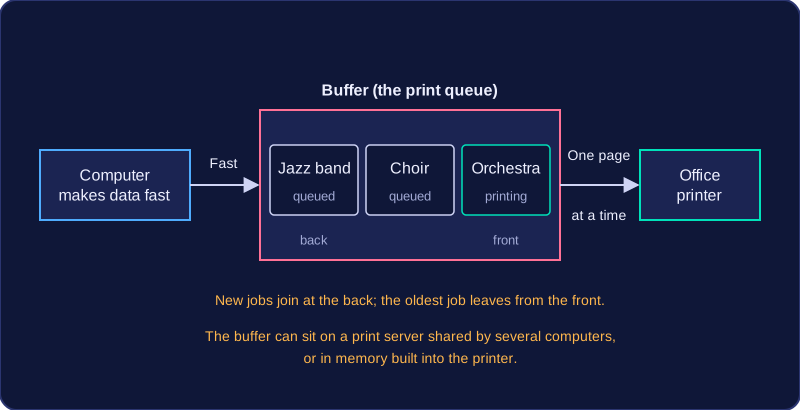
In a design technology room, a computer sends a list of movements to a robot arm that draws the school logo onto card. The arm moves at its own slow pace, so peripheral management holds the movement commands and passes them out one at a time, at the speed the arm can take them. The processor is then free to get on with other work in the gaps, instead of sitting idle waiting for the arm.
The same happens in reverse with a slow input device: readings are held as they arrive until the program that needs them is ready, so nothing is lost while it waits.
Jobs on their way to a device are kept in a queue, and the operating system releases them in turn. That way several jobs waiting for the same device are never mixed together.
Stopping two programs clashing
A peripheral is often wanted by more than one program at once. Picture the barcode scanner on a school library desk: the issuing program uses it to check books out and back in, and a stock-taking program uses it to record which books are on the shelves.
If the scanner reported a barcode while both programs were waiting for it, the code could end up in the wrong one, and a book could be marked as returned when it is still out. Peripheral management prevents two programs from using the same peripheral at the same time, so one program finishes with the scanner before the next one takes it. Both jobs still complete correctly, just one after the other.
Peripheral management is the job the operating system does of looking after every connected device. Part of that job is spotting when a peripheral stops working and telling you about it, rather than letting the computer carry on as if nothing were wrong.
Detecting a problem
While the computer is running, peripheral management checks the state of each connected device. It looks at whether the device is still connected, whether it replies when the operating system sends it a signal, and whether the data coming back arrives complete and without errors.
If a check fails, the operating system treats it as a peripheral problem. The cause might be a loose cable, a wireless device that has lost its connection, a flat battery, or a driver that is no longer suitable – the operating system does not need to know which, only that the device is not behaving as expected.
Reporting it to the user
A problem that nobody is told about is no use to anyone, so peripheral management reports it. This usually means a message on screen naming the device, for example “Barcode scanner not responding”, and often a small warning icon in the corner of the screen.
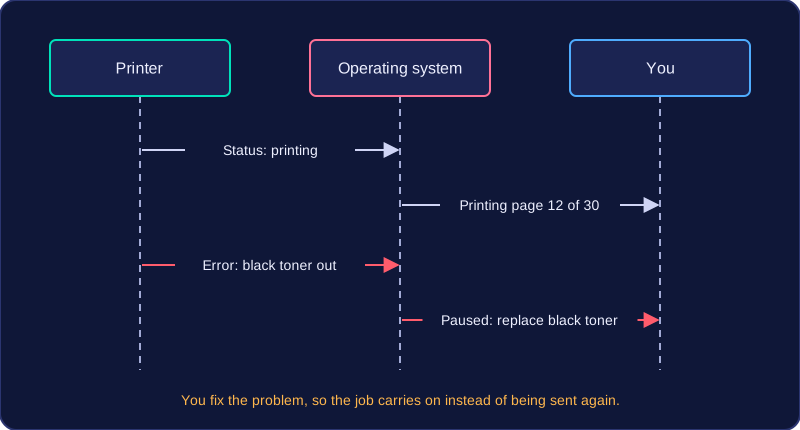
Reporting matters because a program and the user can otherwise be left waiting for data that will never arrive. A warning explains why a job has stalled and lets you act: reconnect the device, try a different cable or port, or install an updated driver.
Worked example
In a science lesson, a student is logging the temperature of cooling water with a wireless temperature probe. The readings on screen suddenly stop updating. Peripheral management notices that the probe has stopped replying. It does not silently ignore this: it displays “Temperature probe not responding”. The student saves the results collected so far and connects the probe to the computer again, and the warning disappears once readings start arriving again.
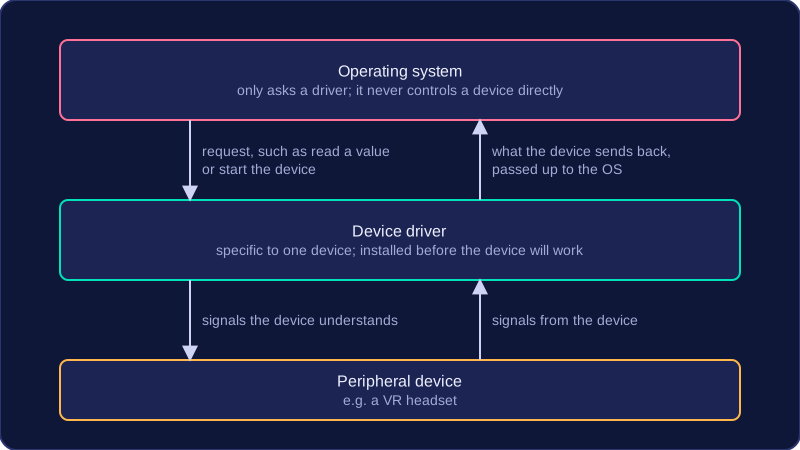
A device driver is software that acts as a translator between the operating system and one connected device. It is not the cable or the device itself. It takes the operating system’s general instructions and turns them into the specific commands that the device understands.
One instruction, translated
Imagine a school’s USB robot arm. The operating system may issue a general instruction such as rotate joint 2 to 45 degrees. The arm cannot act on that wording by itself. Its driver knows the command set for that exact model, so it translates the request into steps the motors understand, such as running motor B for 320 steps and reading a position sensor. Different robot arms can have different motors and commands, so each model needs its own driver.
Why this helps the operating system
Because the driver handles the device-specific detail, the operating system does not need to know how every device works. It can send a general request and let the correct driver deal with the rest. Without drivers, the operating system would need built-in knowledge of every device’s command set, and it would need changing whenever a new device was connected. The driver keeps that detail separate, so the operating system can support many devices through one general way of communicating.
A device driver is software that lets one particular device work with an operating system. Each device needs the correct driver for the operating system it is used with, so making sure a device has a suitable driver is part of peripheral management.
A driver is written to fit the way one operating system sends instructions to hardware. It is not a general file that any computer can use: the same piece of hardware needs a different driver for each operating system it is connected to, even though the hardware itself has not changed.
What the right and wrong driver do
| Driver installed | What happens |
|---|---|
| The correct driver for this device and this operating system | The device works fully as intended |
| No driver, or a driver written for a different operating system | The computer may not recognise the device, or some of its features may fail |
When the driver is missing or unsuitable, the computer may not recognise the device at all, so nothing happens when you use it. Sometimes the device is recognised but only partly works: a games controller's buttons may respond while its vibration feature does nothing. The device is not necessarily broken; the software needed to use it properly is missing.
Worked example
A science department connects a digital microscope to a computer. The driver on the computer was written for a different operating system, so the computer cannot use the microscope. Its power light comes on, but no image appears on screen. On a computer running the matching operating system with the correct driver, the live image appears and the capture button saves a photo. The hardware is the same in both cases; only the driver is different.
A device driver is a small piece of software that lets the operating system send instructions to a particular peripheral device. Most drivers are installed automatically, so you rarely install one by hand.
Installing a driver automatically
Plug a dance mat into a laptop for a PE lesson and the operating system notices that new hardware has appeared. It searches for a driver that matches the dance mat, loads it, and the arrows on screen start reacting to footsteps within seconds. Nothing has to be hunted down or set up manually.
That automatic installation is helpful because you do not need to understand the hardware yourself. Looking after drivers in this way is one of the jobs of peripheral management.
Why drivers get updated
The company that made the device writes its driver, and later on it may publish a newer version. Updates come out to repair faults that users have reported or to improve how smoothly the device works. A new driver for the dance mat, for example, might make quick jumps register more reliably.
When a device stops working after an upgrade
Each driver is written for one operating system, and an old driver may no longer fit after an upgrade. The device can then stop working or work only in part. Take the visualiser in a classroom: after the teacher's laptop is upgraded, the picture on the projector can freeze or vanish. The visualiser is probably fine — its driver was written for the previous version of the operating system.
The usual fix is to visit the manufacturer's website, download the driver written for the new operating system and install it.