Peripheral Management and Drivers
Reporting Peripheral Problems

Peripheral management is the job the operating system does of looking after every connected device. Part of that job is spotting when a peripheral stops working and telling you about it, rather than letting the computer carry on as if nothing were wrong.
Detecting a problem
While the computer is running, peripheral management checks the state of each connected device. It looks at whether the device is still connected, whether it replies when the operating system sends it a signal, and whether the data coming back arrives complete and without errors.
If a check fails, the operating system treats it as a peripheral problem. The cause might be a loose cable, a wireless device that has lost its connection, a flat battery, or a driver that is no longer suitable – the operating system does not need to know which, only that the device is not behaving as expected.
Reporting it to the user
A problem that nobody is told about is no use to anyone, so peripheral management reports it. This usually means a message on screen naming the device, for example “Barcode scanner not responding”, and often a small warning icon in the corner of the screen.
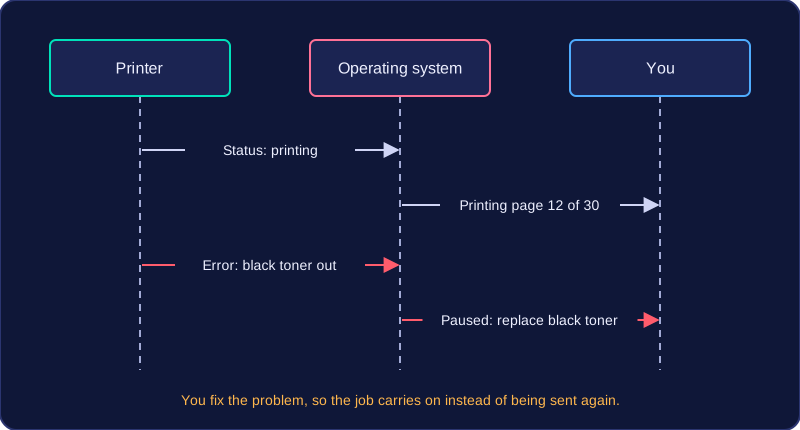
Reporting matters because a program and the user can otherwise be left waiting for data that will never arrive. A warning explains why a job has stalled and lets you act: reconnect the device, try a different cable or port, or install an updated driver.
Worked example
In a science lesson, a student is logging the temperature of cooling water with a wireless temperature probe. The readings on screen suddenly stop updating. Peripheral management notices that the probe has stopped replying. It does not silently ignore this: it displays “Temperature probe not responding”. The student saves the results collected so far and connects the probe to the computer again, and the warning disappears once readings start arriving again.
Practise this
OCR GCSE Computer Science · Peripheral Management and Drivers