Networks
The Internet
Contents
The Internet is a global system of separate computer networks that are linked together. It is often described as a network of networks, because it is built from many separate networks rather than being one single network.
The separate networks are owned and run by many different organisations, and they are located in countries all over the world. Each network is looked after by the organisation that runs it, but the networks are connected together, so a device on one network can communicate with a device on another. For example, a dental practice's network in Bristol and a film studio's network in South Korea can send data to each other even though neither organisation runs the other's network.
No single person, company or government owns or controls the whole Internet. Ownership is shared between all the organisations that run the separate networks that make it up. This shared ownership is what makes the Internet worldwide: no one organisation provides every part of it. It is therefore wrong to describe the Internet as a single network owned by one company or by the government.
A web browser is client software that requests web pages from a web server, receives the files that make up a page and displays it on screen. It runs on your own device, such as a laptop, tablet or phone, and it acts as the client whenever a page is loaded.
What the browser does when you open a page
You type a web address or click a link. The browser sends a request for that page to the web server that holds it, which means it first uses DNS to turn the domain name in the address into the server's IP address. The server replies by sending back the files that make up the page, and the browser is the program that turns those files into the page you see: headings, paragraphs, pictures and colours laid out on screen. Without a browser, the same files would arrive as raw data that you could not read.
For example, if you open the fixture list for a village badminton club, your browser sends a request to the club's web server, receives the files that build the page and draws the table of dates and times so that you can scroll through it.
Browser or server?
A browser is client software, not a server. It does not store websites and it does not send pages out to other computers; it only asks for pages and shows the ones it receives. The web server is the computer that stores the site and hands the files out, so the two roles are always separate.
| Feature | Web browser | Web server |
|---|---|---|
| What it is | Client software | A computer that provides a service |
| Where it is | On the user's own device | Connected to the Internet and kept running |
| Job when a page loads | Sends the request, receives the files and displays the page | Stores the site and sends the files back |
| Stores websites | No | Yes |
Common browsers include Brave, Opera and Vivaldi, and each of them can act as the client for the same web server.
DNS (Domain Name Service) is a service made up of many Domain Name Servers. It takes the domain name from a URL and works out the IP address of the server where the website is stored.
Every device connected to the Internet has its own IP address, and that includes every web server: the address is how the device is identified on the network. A URL (Uniform Resource Locator) gives the location of a particular web page or resource, and the domain name part of it identifies the web server that holds the website. For example, in https://www.rocketkites.co.uk/events, the domain name is www.rocketkites.co.uk.
People use domain names in URLs because IP addresses are long strings of numbers that are difficult to remember and type accurately. If you had to type the IP address of a web server instead, one wrong digit could send you to the wrong server or to nothing at all.
Looking up an IP address
When your browser needs a page, it sends the domain name from the URL to a DNS server. The DNS server looks the name up in its database of domain names and matching IP addresses, then returns the IP address to your browser. Your browser can then contact the web server at that address.
Many Domain Name Servers are used because one server could never hold a copy of every domain name, nor cope with all the requests made across the Internet, so the work is shared out. Using many servers also means that if one DNS server fails, the others can still answer requests.
DNS servers are not web servers
A DNS server stores a database of names and IP addresses, not the website's pages. The web server is the computer that stores the pages and sends them to your browser. So DNS helps you find the right web server; it does not hold the website itself.
Before a browser can load a web page it needs to know the IP address of the web server holding that page, because computers find each other by number, not by name. You type a domain name such as www.harbourlight-museum.org.uk, so the name has to be swapped for an address first. That job belongs to DNS (the Domain Name Service), which is made up of many DNS servers.
Finding the address
- When you type a URL or click a link, the browser may first check its cache, a store of names and addresses it has looked up recently. If the name is there, it can get on with the request straight away.
- If the cache has no entry, the browser sends the domain name from the URL to a DNS server.
- The DNS server searches its own database for that domain name.
- If it finds the name, it returns the matching IP address to the browser or computer that asked.
- If the name is missing, that server forwards the query to a different DNS server, which searches its own database in the same way. This can continue through several servers.
- If no DNS server can find the name, an error is returned to the browser, so the page cannot be loaded.
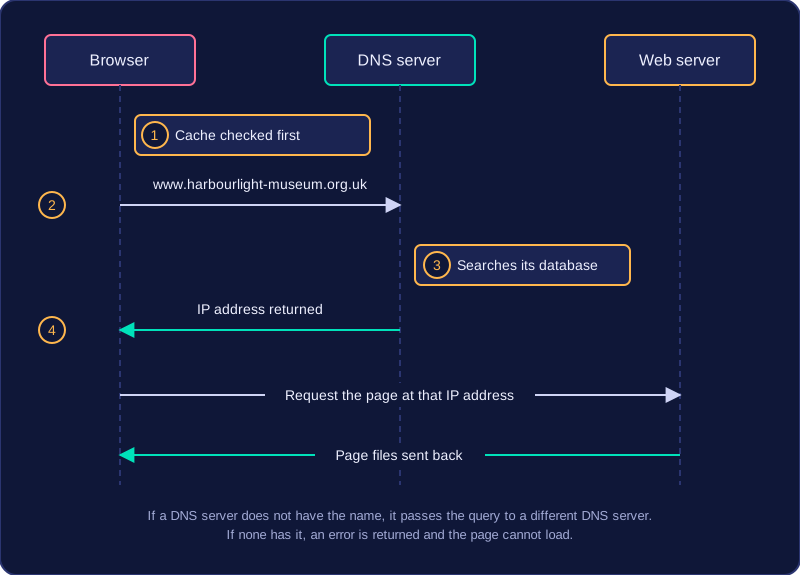
A DNS server does not store the website itself. It only keeps records pairing domain names with IP addresses; the pages live on a web server.
Once the address is known
With the IP address in hand, the browser asks the web server at that address for the page. The web server finds the requested page and sends the files back to the browser, which displays the page on your screen.
A phone contacts list shows the idea: you pick a person by name, such as 'Auntie Jo', and the phone looks up the number saved for that name, so you never need to remember the number. The domain name is like the contact name, the IP address is like the saved number, and the DNS server is like the contacts list that returns it.
Hosting is when the files for a website or online service are stored on a server that is online, so other people can reach the site. If you hosted a site on your own computer at home, it would only be reachable while that computer was switched on and connected, and it could be slow for visitors far away.
Using a hosting company
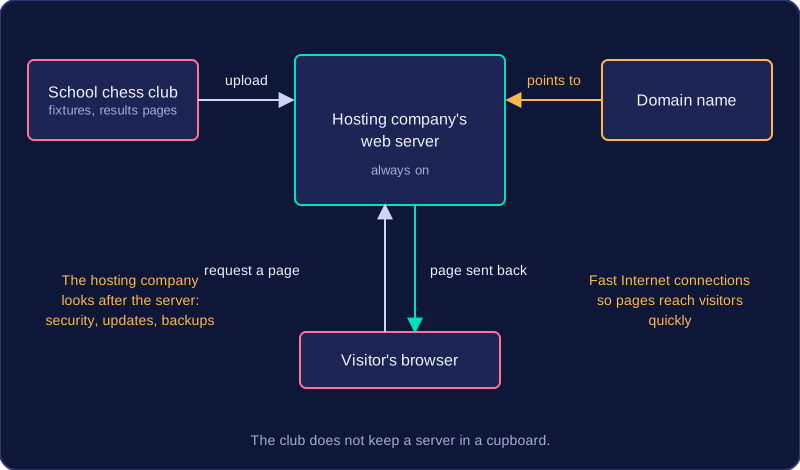
Most websites and online services are hosted by a hosting company. The company runs servers and keeps them connected to the Internet all the time. You upload your website files to the company's server, and visitors' browsers request the pages from there.
- You do not need to buy, run or maintain your own server.
- The servers are reliable and always on, so your site stays available day and night.
- The company provides fast Internet connections, so pages reach visitors quickly.
- The company handles maintenance, updates, security and backups, which you would otherwise have to do yourself.
You still need a domain name
The hosting company stores the files, but you still need a domain name that points at the hosted server. That is the name visitors type or click, and it must be set up so that it leads to the server holding your site.
For example, a school chess club could pay a hosting company to store its fixtures and results pages. The club does not keep a server in a cupboard; the hosting company's server stays online, and the club's domain name points visitors to it.
Cloud computing means using computing services that are hosted on another organisation's servers and reached over the Internet. The service could be storage, software or processing. The servers and the software are not kept on your own computer: your device sends a request, and the provider's servers do the work.
Cloud services run on remote servers rather than on your own device. The provider owns, powers and maintains those servers, and you reach them through an internet connection. The cloud is not a physical place in the sky: it is a way of using someone else's servers over the Internet. When you save a file to the cloud, the file is stored on the provider's servers, and you open it again over the Internet.
Cloud software
Cloud software is an application that runs on the provider's remote servers instead of being installed and run on your device; you reach it by loading a page in a web browser or by launching an app. Your device mainly sends your actions, such as clicks and typed text, and displays the results the servers send back. For example, a band could use a browser-based music studio to record and mix a track: the mixing tools and project files are held by the service, so each band member opens the same project from their own device.
Cloud processing
Cloud processing is when the demanding work is carried out on the provider's servers, with only the results travelling back to your device. For example, a small camera could send a recording to an online service that turns the speech into subtitles. The service does the processing on its servers and returns the finished text. Because the work happens remotely, a less powerful device can use software it could not run well by itself: it only has to send requests and display the results, rather than carry out the processing.
Cloud storage saves files on remote servers owned by a cloud provider, rather than on your own device. The servers belong to the company running the service, not to you.
Opening your files
You log in to the cloud storage service to open your files. Because the files are held on the provider's servers, you can reach them from any device with an internet connection, such as a tablet, a home computer or a computer at a relative's house. You do not have to carry the device the file was first saved on, but you do need a connection to get to the files.
Synchronising and backups
Many cloud storage services synchronise files. This means a change made on one device is copied to the other devices logged in to the same account. For example, you add a paragraph to a project on a tablet; once the tablet is online, the updated file is copied to your laptop, so both devices show the same version.
Cloud storage is also used for backups. A backup is a spare copy kept away from the device the file was made on. If your laptop is damaged, the file still exists on the provider's servers, and you can log in on another computer to open it.
Still someone else's servers
Cloud storage is not the same as local storage. Your files are still stored on the provider's servers, not inside your device, so you need an internet connection to reach them. The cloud is not a physical place in the sky; it is simply a way of storing files on servers run by another organisation.
The advantages of cloud services come from the files, software and processing being held on the provider's remote servers and reached over the Internet. That changes what you can do, how easily you work with others and how much equipment you need.
Access and shared working
With an internet connection you can open your files and use the same software from almost anywhere and on many different devices. A member of a theatre group can update the costume list at home, then check it on a tablet at the rehearsal hall, without a memory stick or wondering which copy is newest.
Shared working means several people can edit the same file at once, and each change appears for everyone. The group can split the ticket spreadsheet between three helpers instead of emailing versions back and forth.
Growing when you need to
Cloud services are scalable: you can buy more storage or processing as demand rises, then reduce it later. Near show week the group can add space for rehearsal videos without buying a server that sits unused for the rest of the year. You pay for what you use, so cost follows demand.
Less kit and less maintenance
The provider runs the servers, so you do not need to buy, house, power or repair your own servers. It also handles maintenance, including updates, backups and security checks. That saves time and the cost of specialist staff, but it does not make the service secure by itself: you still control passwords and who may edit.
Because processing happens remotely, your device can have modest hardware and needs less local storage, since only a small amount of data is kept on it. An eight-year-old classroom desktop can run a detailed 3D design package while the provider's servers do the modelling and rendering.
To recommend cloud services for a situation, name an advantage, explain what it allows there, and weigh it against a drawback such as internet dependence, cost, provider control or security. For the theatre group, shared editing wins because three helpers must update one ticket sheet; scalability alone would not solve that.
Cloud computing has drawbacks as well as benefits. These disadvantages come from relying on an internet connection, on a provider and on a subscription, and from handing control of your data to a third party.
Connection and speed
Cloud services need an internet connection. Without one, you cannot reach files that are only stored in the cloud, or use software that runs on the provider's servers. A slow connection also makes cloud services slow, because how quickly you can open and save files depends on your connection speed. For example, if you open a cloud file on a train with a weak mobile signal, saving it may lag or fail.
Cost and provider dependence
Cloud services often charge a subscription, paid monthly or yearly. Over time this can cost more than buying a local alternative once. You also depend on the provider: if their service goes down, changes its prices or terms, or closes, you are affected and cannot fix it yourself.
Control, security and access
A third party holds your data, so you have less control over it and less privacy. You may not control who can access it, may have concerns over who owns it, and may not know where in the world it is stored. Data held in another country can fall under different data protection laws, and the provider could misuse it. Cloud data can also be hacked, stolen, intercepted or hit by malware.
You may lose data or lose access to it, with no control over backups, and it may not be retrievable. Storage may be limited by your plan.
You must also manage login details, which can be forgotten or lost, and you may need training to use the service properly.
"Less secure" on its own is too vague a drawback: the real issues are the lack of control over security, access, backups and where the data is stored.