System Software
Operating systems
Contents
An operating system is the main type of system software: a set of programs, not a physical part of the computer. It runs and manages the computer, keeping its parts working together. Application software is different: it is the software you choose to use to carry out a task, such as a drawing app, a quiz program or a revision planner.
Three purposes
The operating system has three main purposes:
- Manage the hardware and resources: it coordinates parts such as the processor, memory, storage, screen and speakers, deciding which program can use them and when.
- Provide a platform for application software: it supplies the services that applications need to run, so each app does not have to be written separately for every model of computer.
- Let the user interact with the computer: it takes the user's input and shows output, so you can open programs, change settings and see what is happening.
Why applications need the operating system
Application software does not control the hardware directly. Instead, it asks the operating system to carry out hardware operations on its behalf. For example, a drawing app that saves a picture does not command the storage device itself; it asks the operating system to save the file. The operating system then handles the hardware and tells the app when the job is done.
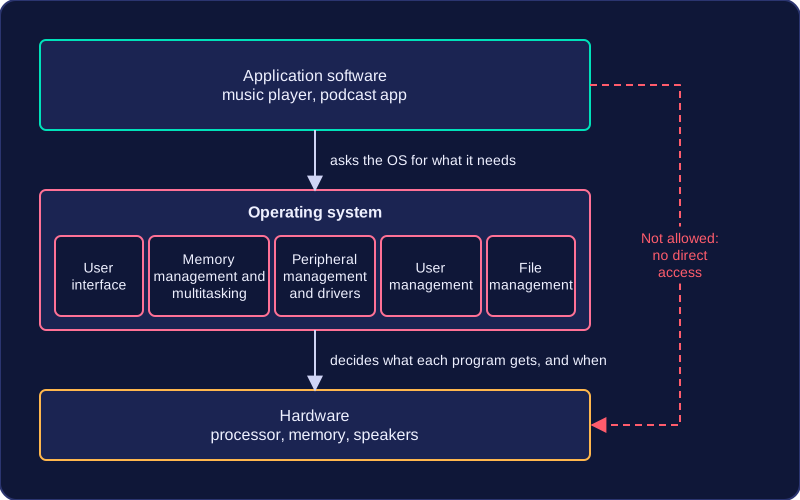
This keeps applications simpler and safer. An app can concentrate on its own task, while the operating system makes sure programs share the computer's resources without interfering with each other.
An operating system is the system software that manages a computer's hardware and lets you use it, and it carries out five functions. Each function is a job the operating system does quietly in the background so that you, and the programs you use, can get on with things.
| Function | The job it does | An action that shows it |
|---|---|---|
| User interface | Lets you control the computer and see what is happening | Choosing a game from a console's home menu with a controller |
| Memory management and multitasking | Shares out memory between programs and decides which ones run | Switching from a drawing app to a calculator and back, with your drawing still there |
| Peripheral management and drivers | Sends data between the processor and devices such as scanners and printers | Loading the driver for a barcode scanner plugged into a shop till |
| User management | Sets up accounts, access rights and security | A parent's account on a family tablet can install apps; a child's cannot |
| File management | Names, stores, moves and saves files | Keeping a film project's video clips in one folder and its sound effects in another |
Many descriptions of a computer at work are really describing one of these five functions. Match the action to the job in the table, and give the reason too, because one action can involve two functions: opening a saved level in a game needs file management to find the save file, then memory management and multitasking to load it into memory so you can carry on playing. If the action is about who is allowed to do something, it is user management; if it is about setting up a device or passing data to it, it is peripheral management and drivers.
These five are roles carried out by the operating system itself, not five separate application programs that you choose to run. You never open "memory management" from a menu — the operating system is already doing it while your apps run.
The user interface is the part of the operating system you deal with directly. It lets you control the computer by taking your input, such as a tap, a click or a typed command, and displaying output back to you on the screen. Without it the operating system would still be running, but you would have no way to tell it what you wanted.
Input and output working together
An interface pairs what you do with what you see. When you tap a button, the operating system receives that input, works out which option you chose, and changes the display so you can see the result. That loop is what makes a computer usable: input tells the operating system what you want, and output shows you what happened.
For example, at a cinema ticket machine you tap the name of the film you want, which is the input, and the screen shows the seats that are still free, which is the output. You then tap a seat and the screen shows the ticket price. Each tap changes what is displayed, so you always know what to do next.
Not always graphical
Many interfaces are graphical: they show windows, icons and menus, so the choices are visible and you can explore without learning command names. Others are command-line interfaces, where you type a line of text and press Enter; you must know the exact command, but it is still a user interface taking input and giving output. Whoever sets up the computer chooses the type, and the interface is only one of the operating system's jobs.
Memory management and multitasking is the operating system function that controls where each running application is placed in memory, and moves the program's instructions and the data it uses from secondary storage into memory when they are needed. Programs are stored in secondary storage, but they must be copied into memory before the processor can run them. The operating system handles this transfer and keeps a record of which areas of memory are free and which are in use. It also loads data, such as a photo you open, from secondary storage into memory.
Giving each application its own area
When you open an application, the operating system loads it from secondary storage into memory and reserves a separate area for it. Each running application gets its own area, so one program cannot overwrite another program's instructions or data. When you close an application, its memory is released and can be used by something else.
Multitasking
Multitasking means the operating system manages several programs so they can be in memory and appear to run at the same time. The operating system switches between them quickly enough that they appear to run together. It is not simply having several windows open: a window can be open while the program inside it is doing nothing. The operating system allocates memory to each program and manages how the programs run, so one program does not stop the others from working.
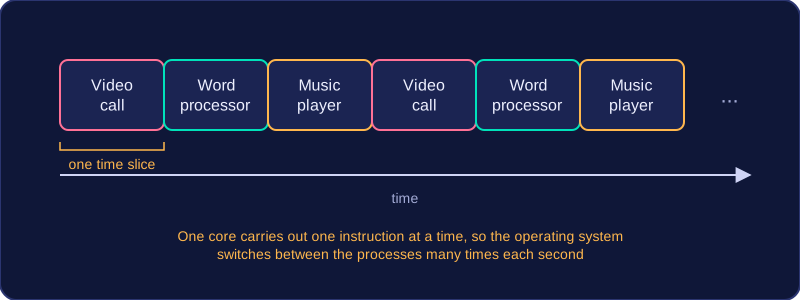
For example, you might open a 3D design app to build a model and a calculator app to work out dimensions. The operating system loads each app from secondary storage into its own area of memory. If you close the calculator, that memory is freed for another program, while the 3D design app keeps its own area.
Peripheral management and drivers is the operating system function that handles data travelling between peripheral devices and the processor. A peripheral is any device attached to the computer that sends data in or receives data out — a keyboard, webcam, speaker, game controller or external drive. The processor works far faster than these devices, so the operating system has to keep data moving in an orderly way: collecting input when it arrives, passing it to the program that needs it, and sending output to the correct device. It is not the same as file management, even though both move data around — peripheral management deals with devices, not with naming and storing files.
A driver is software that lets the operating system communicate with one particular device. It translates the general instructions the operating system gives into the commands that device understands, and turns the data coming back into a form the operating system can use. Different makes and models of device can each need their own driver, which is why a newly connected device sometimes has to have one installed before it will work.
Worked example
You plug a graphics tablet into a computer. The operating system needs to know where the stylus is and whether its tip is pressed down. The tablet's driver turns the incoming signals into position and pressure values that the operating system can pass to the drawing program. It also sends instructions from the operating system back to the tablet, such as switching on a status light.
A driver is software, not the physical device itself: the tablet is the hardware, and the driver is the program that tells the operating system how to use it.
User management is the operating system function that creates and controls user accounts. It decides who is allowed to log on to a computer and what each person may do once they are logged on.
Everyone who uses the computer has their own account, and the operating system gives that account a set of access rights. These are permissions that set which programs can be opened, which settings can be changed and what parts of the system can be reached. An account with few rights can still use the computer perfectly well, but it cannot change the setup or reach anyone else's files.
Different accounts, different rights
A community sports centre has three reception computers, and each member of staff has an account suited to their job:
| Account | Access rights |
|---|---|
| Volunteer | Open the booking program and add a booking; payment settings cannot be changed |
| Duty manager | Everything a volunteer can do, plus issue a refund and view the takings report |
| Technician | Create and delete accounts, install software and change settings for every user |
When a new volunteer starts, the technician creates an account with volunteer rights, so nothing more is handed over than the job needs. If a member of staff leaves, the account is disabled, so their old password can no longer be used.
Accounts as security
Because every action is tied to an account, the operating system can require a password at logon, insist on a new password after a set time, and lock an account after several wrong attempts. That is why user management is really about security. User management is not the same as file management: saving and organising files is a separate function, while user management is about accounts, permissions and keeping the computer safe from the wrong people.
File management is the operating system function that organises files on storage. It names files, allocates them to folders, moves them and saves them, so that they can be found and opened again later.
What file management does
- Naming gives a file a label so that you and the operating system can identify it.
- Allocating to folders groups related files together, so storage stays tidy and files are easier to find.
- Moving changes where a file is stored, for example when you reorganise a project.
- Saving writes the file's data to storage and records its name and folder, so your work is kept after the program closes.
These jobs matter because a storage device can hold thousands of files. Without clear names and folders, you could struggle to find the one you need. For example, a pupil building a maze game saves the program as maze_game.py in a folder called maze_game, with separate folders for images and sounds. If they later move the sounds folder, file management records its new location, so the folder can still be found. When they reopen the project, the clear names and folders make the files easy to find.
File management is not the same as memory management. Memory management deals with programs and data while they are in memory; file management deals with files stored on a drive.