Programming Fundamentals
File Handling
Contents
While a program is running, the values stored in its variables and arrays sit in main memory. Main memory is volatile, so it keeps data only while the power is on. When the program finishes, or the machine loses power, those values vanish and the memory can be reused. Start the program again and every variable begins again from its starting value.
A file avoids this because it lives in secondary storage. Secondary storage is non-volatile, so the data is still there after the program has finished and after the machine has been switched off. Next time it runs, the program can open the file and read the saved values back. That is why a program that needs to remember something between runs saves it to a file instead of keeping it in a variable.
A worked example
Imagine a school gardening club program that asks for the height in centimetres of each sunflower and prints the tallest. If those measurements are held only in a variable inside a loop, they are gone once the program closes, so a club member must measure and type every height again at the next meeting. If the program instead writes each height into a text file as it is entered, the measurements are still on disk a week later, and a second program can open the same file to work out which sunflower has grown most over the term.
Reading data someone else made
A file can also be a source of information that a program did not produce itself. A canteen manager might type the day's meal prices into a text editor and save them as a file; the till program can open that file and use the prices, rather than having them typed into the code. The same works between programs: a weather station can log readings to a file, and a separate graphing program can open it to draw a chart. Because the data is kept apart from the program, it can be changed or added to without editing a single line of code.
A text file is a file in secondary storage that stores lines of characters. The file handling you need uses text files, so each line is text: when a program reads a line, it receives a string, even if the characters look like a number.
A mode states how a file will be used when it is opened. In Python you give the mode as a short string to open(), such as "r" for read mode or "w" for write mode. The mode controls what happens to the file's contents.
| Mode | Mode string | File must already exist? | Effect on the file |
|---|---|---|---|
| Read | "r" | Yes | Keeps the contents and reads from the first line |
| Write | "w" | No | Wipes existing contents; creates a new file if needed |
| Append (extra) | "a" | No | Keeps existing contents and adds new data at the end |
Read mode opens a file that already exists so you can read it from the start. If the file is missing, Python causes an error rather than making a blank file.
Write mode creates a new file when the name is not there. If the file does exist, opening it in write mode wipes its old contents, ready for a fresh set of data.
An extra mode called append mode is not required by the specification, so questions will not depend on it. It adds new data to the end of a file instead of wiping it, so the existing contents are kept.
File handling is how a program works with a file stored in secondary storage. The four basic operations are open, read, write and close.
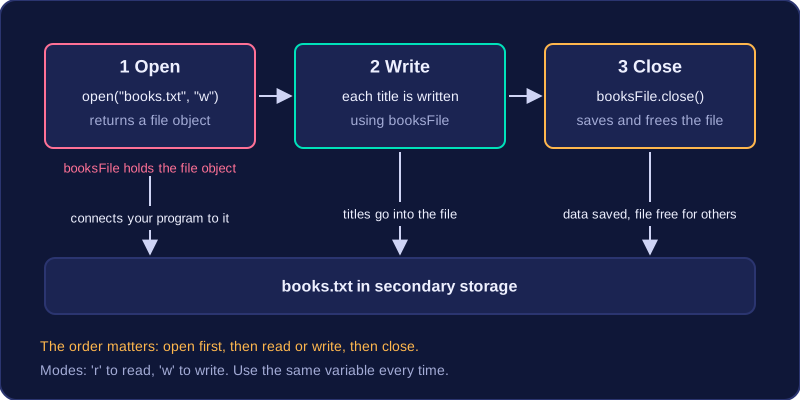
Opening a file connects your program to it. Reading takes information out of the file, normally a line at a time, and writing puts data into the file. Closing finishes using it. The order matters: open first, then read or write, then close. A program cannot read or write before opening, because until then there is no file object to work with.
In Python, open() needs the file name and a mode, such as 'r' to read or 'w' to write, and it returns a file object. Store that object in a variable and use the same variable for every later operation, including closing, so the program knows which open file you mean.
For example, a program saving the titles of books read this term would open books.txt in write mode and keep the file object in a variable called booksFile. Each title is written using booksFile, and the last step is to call close() on it. Using a different variable later would mean the program is no longer pointing at your file, so the data would not reach it.
Closing makes sure any data you have written is saved to the file and frees the file so other programs can use it. A program that opens a file should close it at the end, even when it has only been reading.
Once a file has been opened in write mode, the write() method puts text into it. You call it on the file object and pass one string, and that text is added at the point the file has reached. Two calls in a row join their text together, so you must decide where each line ends.
Only strings can be written
write() accepts a string and nothing else. A value such as 12.5 has to be turned into text first with str(), so str(12.5) gives the string "12.5". Python will not do this for you: passing a number straight in stops the program with an error, because write() only deals in text.
You add the newline yourself
write() stays on the same line when it finishes, so strings written with nothing extra end up squashed together into one very long line. To store one value per line, end each string with the newline character "\n". It is a single invisible character that marks where the line ends, so the next value starts on the line below.
For example, a weather station saves three morning temperatures. For each reading the program converts the number with str(), adds "\n" on the end, and writes the result, so the file ends up holding three lines with one reading on each. You can also build a whole line with + before writing it: joining a label, the converted reading and a unit gives a line such as Morning 1: 12.5 degrees.
readline() reads one line from a text file that has been opened for reading. It returns the line as a string and moves the file position on, so the next call to readline() returns the line after it. Reading one line at a time lets you deal with each record as you go instead of loading the whole file at once.
Newline character: the string that comes back still contains the "\n" character that marked the end of the line in the file. You cannot see it on screen, but it is part of the string, so printing the line straight away leaves the cursor on the next line.
Removing it with strip()
strip() returns a copy of the string with the whitespace taken off both ends, which means the newline plus any spaces or tabs. Apply it as soon as the line has been read so that comparisons work as you expect: a line holding Jazz will not equal "Jazz" while the newline is still attached.
End of file is the point where the reader has taken every line the file holds. A further call to readline() then returns an empty string "", a string with nothing in it at all. That is not the same as a blank line partway down the file: a blank line still ends in a newline character, so it comes back as "\n", which is not empty.
strip() only tidies the text, it does not turn it into a number. If the line holds a price or a score, cast it with int() or float() before you do arithmetic with it.
A string holding a newline behaves in the same way as a line returned by readline():
line = "Jazz\n"         # the kind of string readline() returns for the line Jazz
print(line)              # the newline inside the string ends the output line
print(line.strip())      # strip() copies the string without the newline
print(len(line))         # the newline counts as a character
print(len(line.strip())) # fewer characters once it has gone
Output:
Jazz

Jazz
5
4When you do not know how many lines a text file holds, you need a loop that keeps going until the file runs out. In Python, readline() returns an empty string "" once there is nothing left to read, so you can test for that.
Reading until the file runs out
The pattern is: read the first line before the loop, loop while the line is not empty, and read the next line at the end of every pass. A while loop does not move through a file by itself, so without that final readline() the same line would be tested for ever and the loop would never finish.
A blank line partway through a file does not signal the end of the file: it still contains a newline character, so the variable holding the line holds "\n" rather than "", and the loop keeps going. An empty file works too, because the first read returns "" straight away and the loop body never runs.
If you know the file holds exactly four lines, you can call readline() four times, or use a for loop with range(4). Use the end-of-file loop when the file might be shorter or longer than you expect.
Casting and storing the data
Everything read from a text file arrives as a string, even when it looks like a number. Cast it with int() or float() before doing arithmetic; the newline at the end does not stop float() working. Each cast value can be appended to an array, so the data is still available after close(), and added to a running total while you are there.
For example, a file of rainfall readings holds "2.5\n", "4.0\n" and "0.5\n". Following the pattern, one call is made before the loop and one at the end of every pass:
| readline() call | value of the line | line != ""? | action |
|---|---|---|---|
| 1 | "2.5\n" | True | cast to 2.5, append, add to total |
| 2 | "4.0\n" | True | cast to 4.0, append, add to total |
| 3 | "0.5\n" | True | cast to 0.5, append, add to total |
| 4 | "" | False | loop stops |
File handling goes wrong in a few predictable ways. Knowing what each mistake does to your data helps you spot it when a program behaves oddly.
Losing data or wiping it
If you never call .close() on the file object, written data may not be saved properly to secondary storage. Close the file as soon as you have finished with it, after the last read or write.
Opening an existing file in write mode ("w") empties it first, and creating a missing file with "w" makes a new empty one. If you open diary.txt with "w" to write today's entry, every earlier entry is gone. Use "r" when you want to keep and read the existing contents.
Mistakes when writing
.write() puts exactly the characters you give it and nothing else. Without \n at the end, the next value lands on the same line, so writing "4" then "7" stores "47" and it reads back as one value. .write() also only accepts a string, so a number must be wrapped in str() first.
Mistakes when reading
A line read from a file usually comes back with its newline still attached, so .strip() is needed before comparing it or printing it neatly. The text is also a string: "7" * 2 gives "77" rather than 14, so cast with int() or float() before any arithmetic or number comparison.
A loop only moves on when it calls .readline() again inside the loop body. Forget that and the same line is used every time, so the result is wrong — or the loop never ends.