User Interfaces
Command Line Interface

A command line interface (CLI) is a user interface where you type instructions in a fixed syntax, and the results appear as text on the screen. There are no icons, menus or mouse pointer to use — you type a command, press Enter and read the reply.
The commands you type are instructions to the operating system, which carries them out. This is not the same as writing a program: the commands already exist as part of the operating system, and you are choosing which one to run and what it should work on. A program, by contrast, is your own set of instructions, saved and run as a whole.
Advantages of a command line interface
- Uses fewer system resources — very little is drawn on screen and there are no graphical elements to track, so a CLI needs less memory and processing power than a graphical interface. That suits a device with limited memory and processing power.
- Quick for an experienced user — one typed line can do a job that would take several clicks through menus.
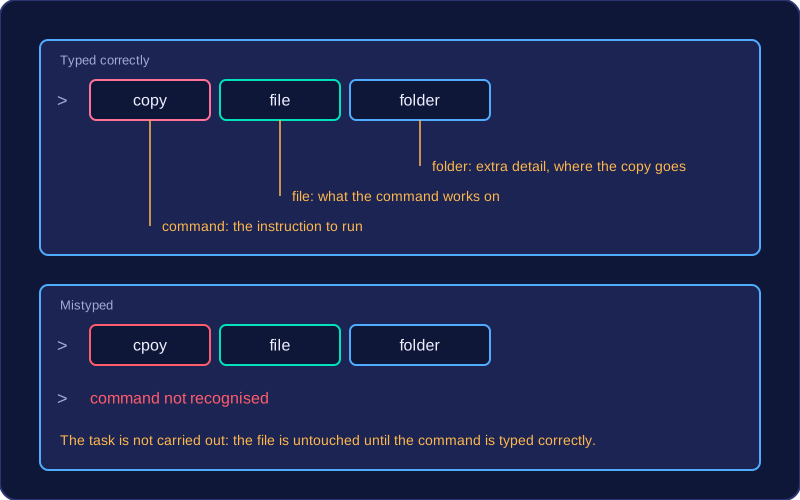
- Precise control — extra details can be added to a command to say exactly what should happen, such as which folder a file is copied into.
- Commands can be stored and repeated — a list of commands can be saved and run automatically, so the same steps happen every time. A weekly backup of a club's shared folder can be set up this way instead of someone clicking through it each week.
Disadvantages of a command line interface
- You must learn and remember the exact commands and their syntax — correct spelling, the right order and the right spaces. Without a reference list, a beginner will struggle, so a CLI is harder to use than a graphical interface.
- A mistyped command produces an error message and the task is not carried out. Typing
cpoyinstead ofcopyto duplicate a file just returns an error such as "command not recognised", and the file stays untouched until the command is typed correctly.