Memory & Storage
Memory
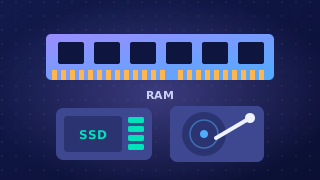
Primary storage (also called primary memory) is memory the CPU can access directly, without going through another device. Everything the CPU is using at that moment is held here: the operating system, the sections of open programs that are in use, the data and instructions being worked on, and the start-up instructions needed to switch the computer on. Primary storage usually consists of RAM and ROM, and cache is also part of it. RAM is the main working area.
What RAM does
RAM holds the operating system, the active parts of running programs and the data currently in use. Complete programs and whole files are stored long-term on secondary storage, not kept in RAM permanently.
RAM is volatile: it needs power to keep its contents and loses them when the power is switched off, so restarting the computer clears RAM. This is why start-up instructions are kept in ROM instead, ready when RAM is empty.
RAM is read/write: the processor stores new values in it as well as fetching them, so its contents are constantly swapped as different tasks start and finish. Closing a program releases the room it occupied for something else to use. RAM has a much larger capacity than ROM but a smaller capacity than secondary storage.
Why the CPU cannot work from secondary storage
Secondary storage keeps programs and files long-term when the power is off, but it is much slower than RAM. If the CPU worked directly from it, it would spend most of its time waiting. When you open a program or file, it is copied from secondary storage into RAM so the CPU can fetch it much faster.
| Feature | RAM | Secondary storage |
|---|---|---|
| CPU access | Direct | Not direct; copied into RAM first |
| Speed | Much faster | Much slower |
| Power off | Contents lost (volatile) | Keeps contents |
| Capacity | Smaller | Much larger |
| Holds | Operating system, active program parts, data in use | Programs and files long-term |
ROM (read only memory) is primary memory that keeps everything it stores even when the power is switched off, so it is non-volatile. As the name suggests, the processor can read from it but cannot write to it during normal use.
What ROM holds
ROM holds the start-up instructions: a small, fixed set of instructions the computer needs the instant it is switched on. They run straight away and start loading the operating system into RAM from secondary storage, so the computer becomes ready to use. The contents of ROM are fixed when the chip is manufactured, so during normal use they cannot be altered or removed.
Only those fixed instructions need to be stored there, so ROM has a small capacity — just enough for the start-up instructions and any fixed data. ROM can also store fixed data that must stay available without power and must not be altered.
Why start-up instructions must be in ROM rather than RAM
RAM is volatile: it loses everything when the power goes off, and at the moment the computer is switched on it holds nothing the computer can use, so any start-up instructions kept in RAM would be lost. ROM is non-volatile, so the instructions are there the moment power arrives, and because it is read only they cannot be accidentally altered or removed. The operating system itself is stored long-term on secondary storage; ROM only holds the instructions that load it.
RAM and ROM compared
| Feature | RAM | ROM |
|---|---|---|
| Volatility | Volatile — contents are lost when the power is off | Non-volatile — contents are kept without power |
| Reading and writing | Can be read from and written to | Can only be read; contents are set when made |
| What it holds | The operating system in use, open programs and data in use | The start-up instructions |
| Capacity | Much larger | Small |
| Contents over time | Change constantly as programs run | Stay the same |
Virtual memory is a reserved area of secondary storage that the computer uses as extra RAM when RAM is full. It is only used then: if everything running fits in RAM, virtual memory is never touched. A computer with no secondary storage cannot use it at all, because virtual memory has to be set aside on secondary storage.
How virtual memory works
RAM fills up when you have lots of programs open or are working with large files. Without virtual memory, the computer would have to refuse to open anything else, and programs already running could stop working or crash. Instead, the operating system moves data you are not using just now out of RAM and into virtual memory, freeing space in RAM.
When you go back to that data, it is copied back into RAM while other unused data is moved out to make room. This swapping happens constantly. The CPU can only process data that is in RAM, so anything in virtual memory has to be copied back first.
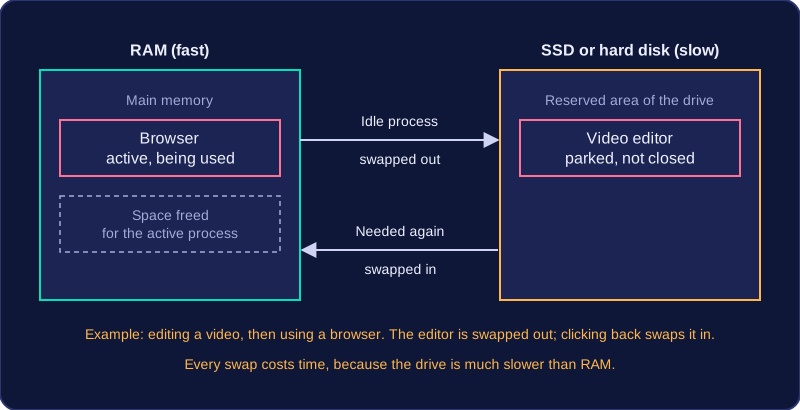
For example, a music studio mixing a multi-track recording has RAM full. The tracks that are currently muted are not needed, so the operating system moves some of that audio data into virtual memory. Switching a muted track back on brings a brief pause while its data is copied into RAM so the CPU can process it.
Advantages and disadvantages
- More programs can stay open and bigger files can be used than RAM alone allows, so the computer carries on instead of crashing.
- It uses secondary storage the computer already has, so no extra hardware is needed.
- Secondary storage is far slower than RAM, so every swap costs time and the machine feels slower; the heavier the swapping, the worse the slowdown.
- It takes up storage space that could otherwise hold your files.
Adding more RAM
Extra RAM reduces the need for virtual memory, because more of the running software fits in RAM. It only speeds up a computer that was already filling RAM and swapping data out. If RAM was never full, adding memory makes little visible difference.