Modern Technologies (BTEC)
Using Cloud and Traditional Systems Together
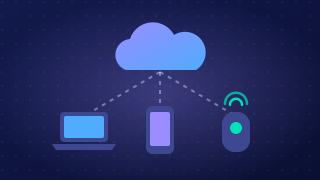
Full synchronisation and selective synchronisation are two ways to set up which files are copied between a cloud storage account and your linked devices.
Full synchronisation
In full synchronisation, every linked device stores a local copy of the synchronised file. That means each device holds the complete set of files, so you can open any of them even without an internet connection. The downside is that every device needs enough storage for everything, and copying all the files can use more data and take longer.
Selective synchronisation
Selective synchronisation is a setting in the sync app: instead of copying every file down to a device, you tick the folders and files you want it to hold. For example, a school music department might sync its whole shared folder to the office desktop, but only the current concert pieces to a classroom tablet with limited storage. This saves space and reduces sync time on that device. Anything you leave out stays safe in your cloud account and you can still open it when you have an internet connection, but it will not be available offline there.
| Aspect | Full synchronisation | Selective synchronisation |
|---|---|---|
| What is copied | Every synchronised file | Only the files or folders you choose |
| Local copy on each device | All devices store the full set | Only the chosen items are stored locally |
| Storage and data use | Higher on every device | Lower on devices with fewer selected items |
| Good for | Devices that need the complete set | Devices with limited storage or a specific purpose |
A notification is an alert that tells you something has happened. It can appear when a new message arrives, or when someone changes a shared document or plan, such as a rota, project plan or appointments list.
Notifications do more than just say “something changed”. They can show who made the change and when it was made. For example, a practice manager at a veterinary surgery updates the shared staff rota to cover a sick colleague. A notification tells the other staff that the rota changed, names the manager, and gives the time. Staff can then check the new shift and arrange cover quickly instead of finding out later.
Why notifications help staff
Staff do not need to keep reopening every shared file to look for changes. A notification brings the update to their attention, so they can respond quickly. This is useful when a plan changes at short notice, such as a delivery time moving or a meeting room being swapped.
- Quick response: staff see urgent updates sooner, so they can act before a delay affects customers or colleagues.
- Clear responsibility: showing who changed something makes it easier to ask that person a question or check the reason for the change.
- Up-to-date awareness: the time of the change helps staff judge which information is newest.
Notifications can also alert staff to new messages in a shared workspace, not only edits to documents. This helps a team notice questions, approvals or instructions without waiting for someone to pass the message on in person.
A mixed system uses everyday local hardware — a laptop, tablet or desktop computer — alongside a cloud service. The device does the processing and keeps files it can open straight away, while the cloud provides storage you can reach from any location with an internet connection. The two halves are joined together by synchronisation, so the local and cloud parts behave like one system rather than two separate ones.
Cloud storage as the central hub
Picture the cloud as the hub of a wheel and each device as a spoke. Every device holds its own copy of the files in a synced folder, and a small sync program compares that copy with the hub.
- If a file was changed on the device, it is uploaded to the cloud.
- If the hub holds a newer version, the device downloads it and replaces its older copy.
Because every device checks against the same hub, changes travel in both directions and the copies stay consistent between devices and locations. A device can also keep working on its own local copy when there is no internet connection, then synchronise once it reconnects.
| Job | Where it happens |
|---|---|
| Opening, editing and saving a file | On the local device |
| Holding the master copy every device checks against | Cloud storage (the hub) |
| Spotting which copies differ and moving changes each way | Synchronisation |
Notifications
A notification is an alert the cloud service sends when something in a shared folder changes. It tells you who made the change and when, so a group working on the same plan knows straight away that it has been updated and does not carry on using an older version.
Worked example
A school drama club builds its running order on a tablet in the hall, while a teacher adds prop notes on a classroom laptop. Neither machine is in the same room, yet both save into the same synced folder. The tablet uploads its updated running order to the hub, the hub sends it down to the laptop, and the laptop's prop notes travel back up and down to the tablet. Next morning both devices show one identical, up-to-date plan — no memory sticks and no emailing files to yourself.
A program can check a device's folder against the hub and report which way each file needs to travel:
local_files = ["running_order.txt", "prop_notes.txt"]
cloud_files = ["running_order.txt", "prop_notes.txt"]

# anything only on the device must go up to the hub
for name in local_files:
    if name not in cloud_files:
        print("Upload:", name)

# anything only on the hub must come down to the device
for name in cloud_files:
    if name not in local_files:
        print("Download:", name)