Programming Fundamentals
SQL

Contents
A database is an organised collection of data, stored in a structure that lets a computer find and retrieve information quickly. The structure is the important part: instead of keeping information in a pile of separate documents, everything is held in a fixed format that lets the computer locate the data you want.
Tables hold one type of thing
Data in a database is kept in tables. Each table stores data about one type of thing. A community garden might keep one table holding data about its beehives, and a separate table holding data about the gardeners who look after them, because a hive and a gardener are different types of thing. The table below is one table with four fields and three records.
| HiveID | Colour | QueenAge | JarsHarvested |
|---|---|---|---|
| H1 | Blue | 2 | 34 |
| H2 | Green | 1 | 12 |
| H3 | Blue | 4 | 51 |
Records and fields
Each row in the table is a record, which brings together every piece of data held about one item. The row H1, Blue, 2, 34 is one complete record, holding everything known about that single hive. A record is always a whole row, never just one value taken from it.
Each column is a field: one particular piece of information that is stored for every record. Every field has a name, such as Colour or JarsHarvested, which labels the column. So a field is a whole column and a record is a whole row, and the two are not the same thing.
Because every record stores exactly the same fields in the same order, the data lines up neatly. A search can go straight to the field it cares about, which is why storing data in tables makes searching so efficient.
SQL stands for Structured Query Language. It is the language used to search a database. A search written in SQL is called a query. A query only retrieves data; it does not change the data stored in the database.
What a query states
A query states which fields to show, which table to search and which records to include. These three parts are written as clauses in a fixed order.
| Clause | What it gives | Order |
|---|---|---|
SELECT | The fields to show | 1st |
FROM | The table to search | 2nd |
WHERE | The condition that records must meet to be included | 3rd |
A worked example
Imagine a table called TblVolunteers that stores the people helping out at a community garden. It has fields including volunteerName and hoursWorked. To show the names of the volunteers who have worked more than 12 hours, you list volunteerName after SELECT, name TblVolunteers after FROM, and put the condition hoursWorked > 12 after WHERE, in that order:
SELECT volunteerName FROM TblVolunteers WHERE hoursWorked > 12
The result lists only the names of volunteers whose recorded hours pass the test. Every value already stored in the table, including the hours that failed the condition, stays exactly as it was, because the query reads the records without altering them.
A query needs only SELECT, FROM and WHERE. Commands such as INSERT, UPDATE and DELETE would add, change or remove records, so they are not used to search.
SELECT is the part of an SQL query that lists the fields you want to see. The field names go after the keyword and are separated by commas, for example SELECT StockCode, BookName. Use commas, not AND: AND joins conditions in a WHERE clause, not field names.
SELECT chooses fields, not records. The list after SELECT controls which columns appear; it does not decide which rows are included. If a table called LibraryStock has the fields StockCode, BookName, ShelfCode and LoanDays, then selecting StockCode, BookName shows those two columns only. ShelfCode and LoanDays are hidden, but every record is still present. Filtering records is the job of WHERE, a different clause.
Using the asterisk wildcard
An asterisk (*) after SELECT means every field. SELECT * returns all columns from the table, so you do not have to type each field name. The wildcard means all fields, not all records: it does not add a condition or remove rows. A query using * still returns the records that the rest of the query includes.
| What you write after SELECT | What the result shows | When to use it |
|---|---|---|
StockCode, BookName | Only those two fields | When the request asks for particular details |
* | Every field in the table | When the request asks for all fields or all details |
Names must match exactly
Field and table names must be exactly as the database stores them, including spelling, capitals and underscores. Never insert a space inside a name: write LibraryStock, not Library Stock. If you ask for a column the table does not hold — for example AuthorName, when LibraryStock only has StockCode, BookName, ShelfCode and LoanDays — the query cannot run, however sensible that extra column sounds. Use the wildcard only when all fields or all details are asked for; otherwise list only the required fields so the result is focused and easy to read.
FROM is the clause in an SQL query that names the table to search. It comes after the fields you list in SELECT and tells the database which table holds the records and fields you want.
The table name after FROM must match the name in the database exactly, so copy it straight from the table rather than typing it from memory. The database looks the table up by that name, so Tbl_Club_Members is not the same as TblClubMembers or Tbl_Club_Member: leaving out the underscores or a letter means no table has that name, so the query fails.
| Table in the database | FROM written as | Correct? |
|---|---|---|
Tbl_Club_Members | FROM Tbl_Club_Members | Yes — exact match |
Tbl_Club_Members | FROM TblClubMembers | No — underscores missing |
Tbl_Club_Members | FROM Tbl_Club_Member | No — final s missing |
Tbl_Club_Members | FROM Tbl_Club_Members, Tbl_Clubs | No — two tables given |
One table per query
Your queries search one table only, so you write a single table name after FROM. You do not need to join tables, and you must not add a comma or a second table name. The query SELECT FullName, MembershipType FROM Tbl_Club_Members WHERE JoinYear = 2025 searches only the club members table. FROM does not decide which records come back — that is the job of the WHERE condition — it only says which table to look in.
The WHERE clause gives a condition that a record must meet to be included in a query result. Records that meet the condition are returned; records that do not meet it are left out.
WHERE is optional. If you leave it out, no records are filtered, so every record in the table is returned. Add WHERE only when you want to narrow the result.
Conditions use these comparison operators:
| Operator | Meaning |
|---|---|
= | equal to |
> | greater than |
< | less than |
>= | greater than or equal to |
<= | less than or equal to |
<> | not equal to |
In SQL, equality uses a single equals sign, =. A double equals sign, ==, is not used in an SQL condition, even though it may be used for comparison in program code.
A condition can include the boundary value itself. For example, a query asking for seedlings at least 30 cm tall uses >= with 30, so a seedling exactly 30 cm tall is included as well as taller ones. Using > instead would leave out that 30 cm seedling while still returning the taller ones.
The wording of a request tells you which operator to use: under or less than uses <, over or more than uses >, and at least, or a phrase such as 5 or more, uses >=.
Text values must be enclosed in quotation marks, for example Subject = "Art". Numbers are written without quotation marks, for example Copies > 5. The quotation marks show that the value is text; adding them around a number is unnecessary.
The SQL keyword is WHERE, not IF. IF belongs in program code, not in an SQL query.
You can join two or more conditions in a WHERE clause using AND or OR. The keyword you choose changes which records are returned, so the two are not interchangeable.
AND needs every condition to be true
AND returns a record only when every combined condition is true. For this table:
| Club | Day | Members | Spaces |
|---|---|---|---|
| Chess Club | Tuesday | 18 | 6 |
| Drama Club | Tuesday | 22 | 0 |
| Coding Club | Thursday | 15 | 4 |
| Art Club | Tuesday | 12 | 2 |
| Science Club | Friday | 20 | 0 |
SELECT Club FROM TblClubs WHERE Day = "Tuesday" AND Spaces > 0 returns Chess Club and Art Club. Drama Club is on Tuesday, but it fails the second condition because it has no spaces left.
OR needs at least one condition to be true
OR returns a record when at least one combined condition is true. Using the same table, SELECT Club FROM TblClubs WHERE Day = "Tuesday" OR Spaces > 0 returns Chess Club, Drama Club, Coding Club and Art Club. Drama Club is included because its day is Tuesday, even though it has no spaces. Science Club is left out because both parts are false. The AND query returned two clubs and the OR query returned four, so swapping the keywords would give different records.
Each side is a full comparison
Write a complete comparison on each side of AND or OR, so the field name is repeated: Day = "Tuesday" AND Spaces > 0. Writing Day = "Tuesday" AND > 0 does not work, because the second part does not say what to compare. The same rule applies with OR.
To turn a written request into a query, pick out three things: the fields to show, the table to search and the condition the records must meet. Imagine a table TblBooks holding BookID, BookName, Author, Copies and Shelf. A request for “the name and shelf of books with more than 4 copies” needs BookName and Shelf, from TblBooks, where Copies is greater than 4.
Build it in order
Write SELECT first, then your field names separated by commas — never by AND. Next write FROM and the exact table name. Last, write WHERE and the condition, using a single = for equality and quotation marks around text values, such as "Priya Raman". Numbers do not need quotes.
All fields or every record
Put the * wildcard after SELECT only when the request asks for all fields or all details; when it names particular fields, list just those. Leave WHERE out when the request wants every record, because a query with no condition returns them all — adding an invented condition quietly drops rows you were asked for.
Correcting a query
Each part of a statement earns its own mark, so keep the parts that are already right and change only what is wrong. Check one fault at a time: the clause keyword, the field list, the table name, the operator and the quotation marks around text.
| Part of the query | Wrong | Right |
|---|---|---|
| Clause keyword | IF | WHERE |
| Field list | BookName AND Author | BookName, Author |
| Table name | TblAuthor | TblBooks |
| Text value | Author = Priya Raman | Author = "Priya Raman" |
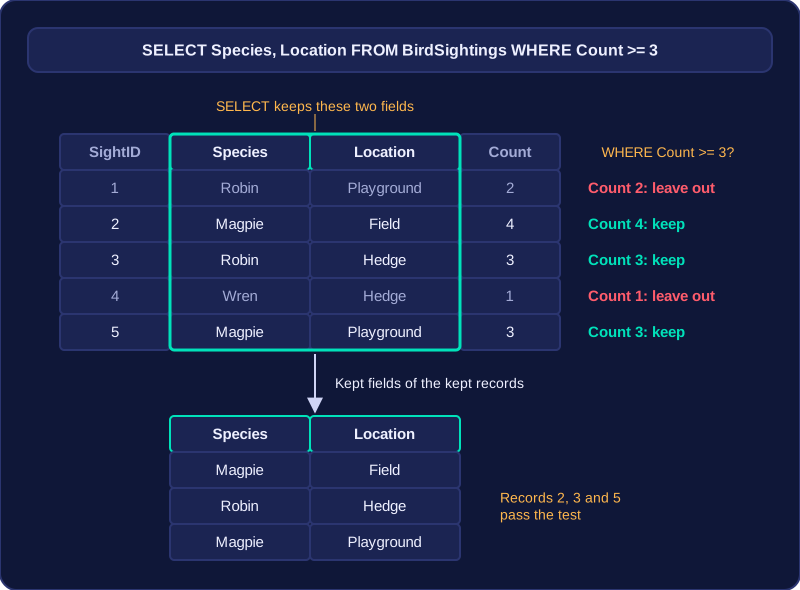
To work out a query result, apply the query to the table one record at a time. The SELECT clause decides which fields appear, and the WHERE clause decides which records appear.
Choose the fields first
The result shows only the fields named after SELECT, in the order given. Every other field still exists in the table but is left out of the result, even for records that match. If SELECT lists Species and Location, the result has exactly those two columns.
Take a table called BirdSightings:
| SightID | Species | Location | Count | Meets Count >= 3? |
|---|---|---|---|---|
| 1 | Robin | Playground | 2 | No |
| 2 | Magpie | Field | 4 | Yes |
| 3 | Robin | Hedge | 3 | Yes |
| 4 | Wren | Hedge | 1 | No |
| 5 | Magpie | Playground | 3 | Yes |
The last column is a check you work out, not a field stored in the table.
Test every record
Suppose the query selects Species and Location where Count is greater than or equal to 3. Check each record against the condition: include it only when the count is 3 or more, and exclude it when the condition is false. A non-matching record does not appear at all.
| Species | Location |
|---|---|
| Magpie | Field |
| Robin | Hedge |
| Magpie | Playground |
Records 1 and 4 fail the test because their Count values are 2 and 1, which are below 3. Records 2, 3 and 5 pass, so only those records appear. The result also leaves out SightID and Count because SELECT did not list them, even though Count helped you decide which records matched.
When there is no WHERE
Leaving out WHERE means no record is filtered out, so every record in the table is returned. On this table, the query would give five records, each showing only Species and Location.